
Brightspace Account Creation, Access, and How to Log in
Overview
The article goes over Brightspace account creation timelines and how to determine when your account will be created allowing you to log in and access your account to work on courses you are registered for.
If you are taking the Highlander Prep course, please view the Highlander Prep Student Onboarding Course Availability article to determine when you can log into Brightspace.
Getting Started
Your Brightspace account will be created within 15 minutes after you register for your first course.
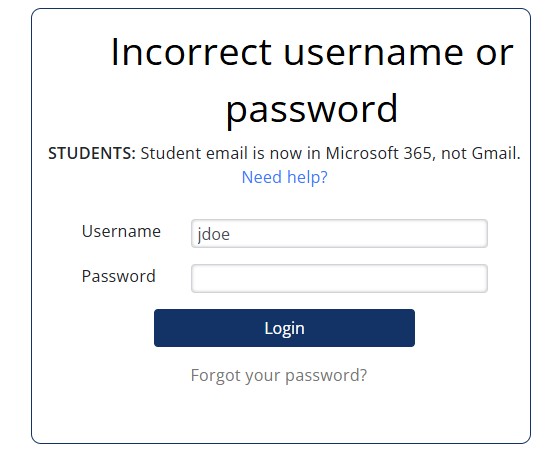
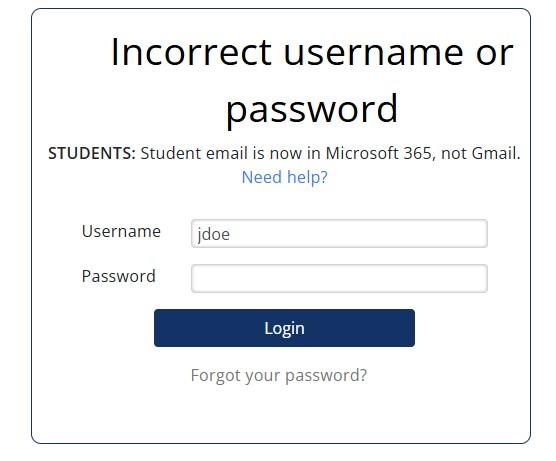 If you get an Incorrect username or password error:
- Please wait another 15 minutes to allow the Brightspace account to be fully created then try to log in again.
- Change your password using the instructions in the article, Manage Your Password (Create, Reset, or Change) and try to log in again.
- If you are still unable to log into Brightspace, contact MCC Tech Support for assistance.
When Do Classes Show Up or Update on Brightspace?
Brightspace updates class information every 15 minutes. This includes:
- New classes you register for.
- Classes you drop.
- Changes to your class schedule.
If you recently registered for a class, dropped a class, or made changes to your schedule, it may take up to 15 minutes for the update to appear in Brightspace.
How to Log into Brightspace
- Go to https://brightspace.mclennan.edu/d2l/login.
- Use your first name initial, last name initial and seven-digit MCC ID (i.e. jd1234567) to log in.
- Your password will be the password you created for MyMCC.
To Check Your Registration Status
- Go to MyMCC: https://mymcc.mclennan.edu
- Sign in using your MCC username and password
- Click on 'Student Planning'
- Under Step 2, click the 'Go to Plan & Schedule' link
- On the left side, confirm the status for the course(s) is 'Registered But Not Started'
To Determine the Payment Deadline
- Go to the MCC events calendar: https://www.mclennan.edu/calendar.html
- Under the Event Type column on the left, click the 'None' link next to 'Select:' under the available categories
- Check the box next to the upcoming semester to view dates related to it (including the payment deadline)
During "Last Chance Registration" designated by "[Semester] Registration Continues", payment is due immediately after registering.