
How to Use the LockDown Browser
Overview
Respondus LockDown Browser is a specialized web browser designed to create a secure and focused environment for online exams. It restricts access to other applications, websites, or resources during the test and limits actions like copying, pasting, or navigating away from the exam.
Getting Started
Installing the LockDown Browser
Install the LockDown Browser using the download and install link provided by the instructor in Brightspace, located on the same page used to start your exam or quiz. The following articles may be used to assist you in installing the LockDown Browser:
- LockDown Browser on Chromebooks
- LockDown Browser on iPad
- LockDown Browser Will Not Install on Windows S-Mode
System Requirements
System requirements may be found at What are the computer requirements for installations of Respondus LockDown Browser?
Starting an Exam or Quiz
Once installed, an exam or quiz may only be started in the LockDown Browser from Brightspace. You may not open the LockDown Browser software first to start an exam or quiz. Once you select to launch your exam or quiz from the link provided by your instructor in Brightspace, the LockDown Browser will automatically open within a few seconds.
Troubleshooting
Webcam
If your quiz or exam requires a webcam and only shows a black image, please check if your security camera cover is covering the webcam. Most laptops allow you to slide the cover open.
Allowing Screen Recording on a Mac
After installing the Respondus LockDown Browser on a Mac, it may prompt you to enable screen recording for the software to function properly. Please refer to the following article from Respondus' knowledge base for the steps to enable it if LockDown Browser is not currently listed to enable under the "Screen Recording & System Audio" section under the Privacy & Security tab in the System Settings:
https://respondus.knowledgeowl.com/home/macos-13-ventura-and-newer-screen-recording-permissio
The Respondus Lockdown Browser will be listed as "LockDown Browser" in the Applications list.
The Pearson LockDown Browser version of Respondus will be listed as "LockDown Browser OEM".
If both are listed, it is recommended to enable them both to prevent future issues.
Allowing Permission to the Downloads Folder on a Mac
After downloading the Respondus LockDown Browser on a Mac, it may prompt you to allow permission to the Downloads folder before it will run: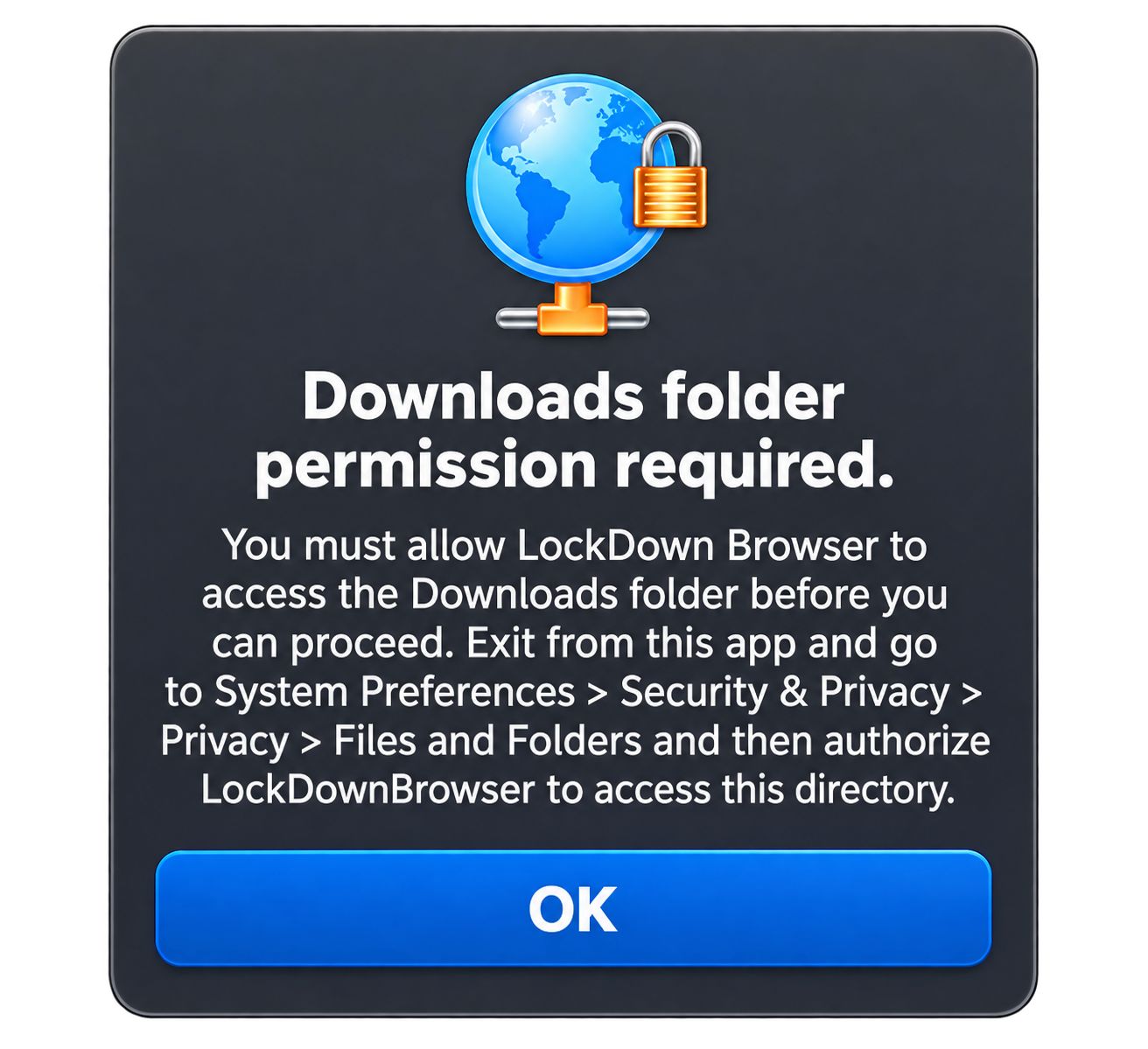
To grant permissions to the Downloads folder:
- Click the Apple icon in the top-left corner of your screen.
- Select System Settings... (or System Preferences on older macOS versions).
- Click on Privacy & Security in the sidebar.
- Scroll down and select Files and Folders.
- Find LockDown Browser or LockDown Browser OEM (Pearson) in the list.
- Turn the toggle on next to the Downloads folder or directory option to grant access. If both are listed, it is recommended to enable them both to prevent future issues.
Respondus Support
- More information may be found in the IT Hub article LockDown Browser Not Opening or Out of Date for issues regarding the Lockdown Browser out-of-date, not loading or opening, and other issues.
- Articles for troubleshooting common issues and the contact information for Respondus LockDown Browser Support may be found at Respondus.
On Campus Lockdown Browser Computers
If you are unable to get the Lockdown Browser working, computers in the Library (on MCC Campus) may be used as they have the Lockdown Browser installed. You may also schedule your exam with the Testing Center at https://www.mclennan.edu/testing-center/Schedule.html.