
Brightspace Account Creation and Access
Overview
The article goes over Brightspace account creation timelines and how to determine when your account will be created allowing you to log in and access your account to work on courses you are registered for.
Help Desk cannot expedite your Brightspace account creation process.
Getting Started
New Student - Not Enrolled in Highlander Prep Onboarding Course
New Brightspace accounts are created three (3) days before classes start.
Once your account has been created 3 days before classes start, you will be able to sign in using your MCC username and current MCC password. If your class is in the 'Registered But Not Started' status on the Student Planning page and payment has been arranged before the payment deadline, your Brightspace account will be created when the new student data is uploaded three (3) days before classes start.
If class will be starting within three (3) days or has already begun but you are unable to sign in:
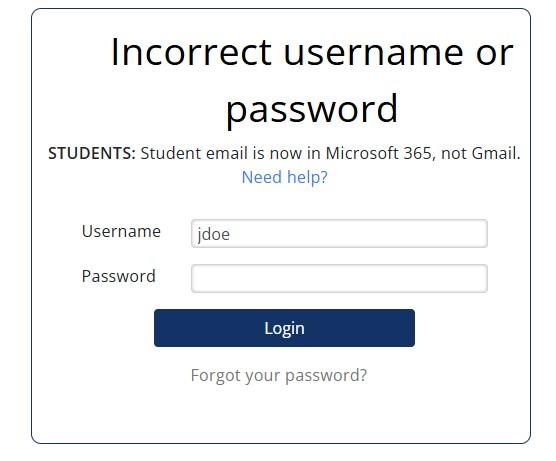
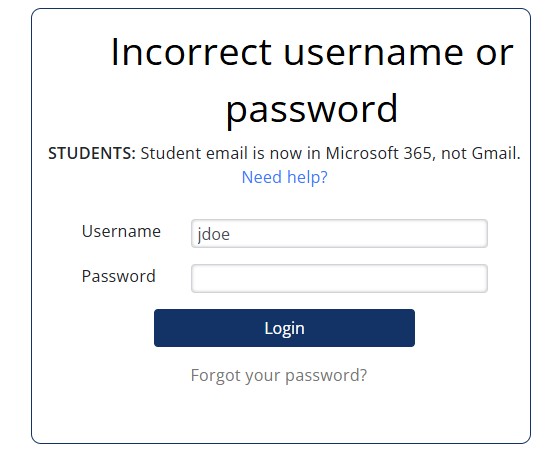
- If you get an Incorrect username or password error, completely close the web browser, change your password using the instructions in the article, Manage Your Password (Create, Reset, or Change) and try to log in again.
- If you are still unable to log into Brightspace, contact MCC Tech Support for assistance.
New Student - Enrolled in Highlander Prep Onboarding Course
If you have been enrolled in the Highlander Prep course and need to get your certificate before being advised, your Brightspace account is created on a different schedule. You can find more information at Highlander Prep Student Onboarding Course Availability
Missing Classes?
Brightspace classes may not be immediately available one you log in, and you can find more information in the article, Classes Missing on Brightspace.
To Check Your Registration Status
- Go to MyMCC: https://mymcc.mclennan.edu
- Sign in using your MCC username and password
- Click on 'Student Planning'
- Under Step 2, click the 'Go to Plan & Schedule' link
- On the left side, confirm the status for the course(s) is 'Registered But Not Started'
To Determine the Payment Deadline
- Go to the MCC events calendar: https://www.mclennan.edu/calendar.html
- Under the Event Type column on the left, click the 'None' link next to 'Select:' under the available categories
- Check the box next to the upcoming semester to view dates related to it (including the payment deadline)
During "Last Chance Registration" designated by "[Semester] Registration Continues", payment is due immediately after registering.