
Add, Remove, or Update Devices and Phone Numbers on Your Duo Account
Overview
Backup Devices
Having more than one sign-in method helps prevent you from getting locked out of Brightspace, Email, and other applications if you lose access to your phone, change phone numbers, or get a new device.
Getting Started
Click Here to Access the Duo Self-Service Portal
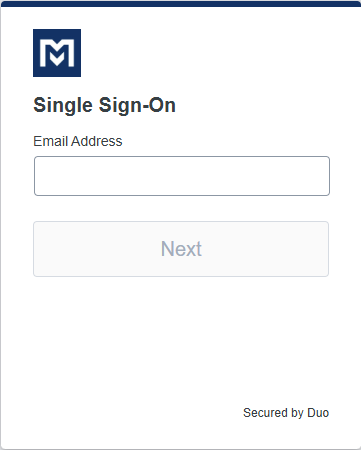
- Go to: https://mclennan.login.duosecurity.com/devices.
- Log in with your MCC credentials (full email & password).
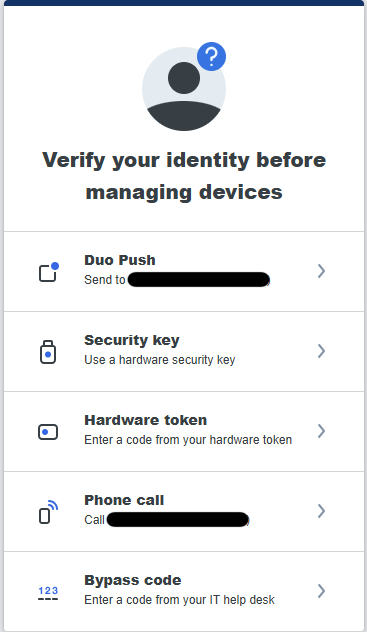
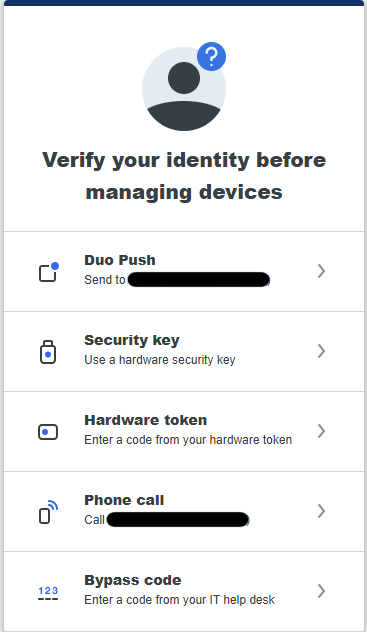
- Verify yourself with your device or method. If you do not have access to the default selected option, click Other Options and select one of the available authentication methods you have access too.
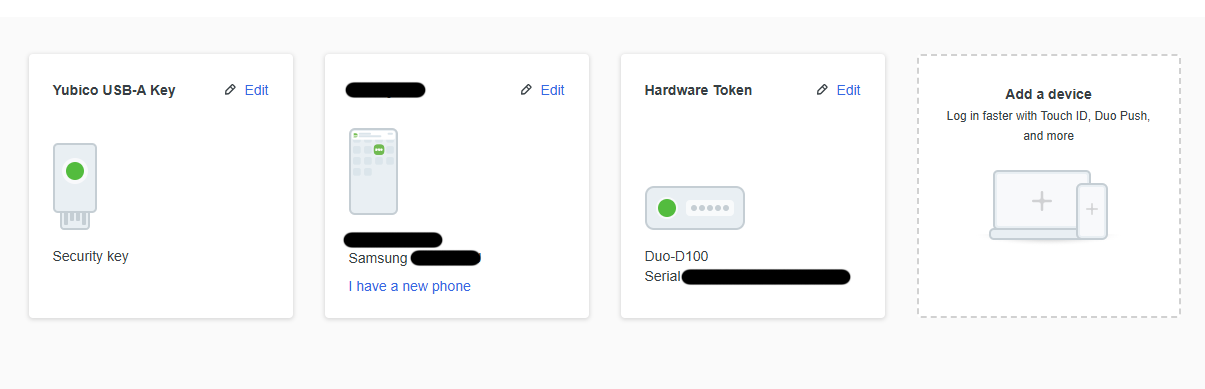
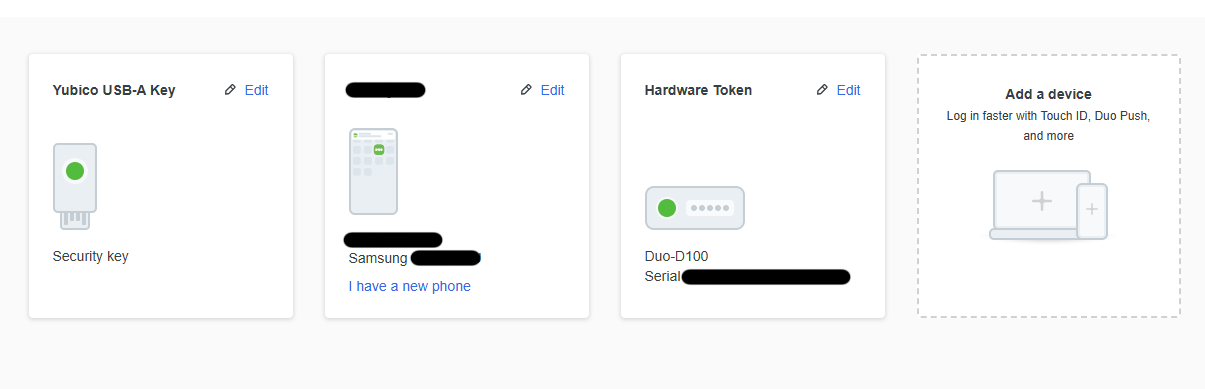
- Once verified, you will be taken to your Duo Self Service portal. Here you will be able to manage your devices & authentication methods.
Click Here to view Instruction add Duo App to a new Phone (Have Same Phone Number)
- Install the Duo app on your new phone.
- Follow the instructions in the Click Here to Access the Duo Self-Service Portal on your new device or on a computer.
- When asked to verify your account with Duo, select Other Options.
- Select SMS or Phone Call authentication and verify the account.
- Find your device and click the link I have a new phone.
- Follow instructions to link the app to your account.
Click Here to View Available Authentication Methods and How to Add Them to Your Account
Using the Duo Mobile app, text messages, and phone calls on the same phone does not count as having a backup device. If that phone is lost or damaged, all three methods stop working.
Choose one of the options below to view instructions and more information on what authentication method you would like to add to your account. Must be logged into the Duo Portal.
Duo Mobile App (Highly Recommended)
- Download the Duo mobile app from your device's app store. More information can be found in the Setup Duo on Your MCC Account article.
- Select Add a Device.
- Select Duo Mobile.
- Enter your phone number and confirm the agreement. (Click Tablet if you are installing on a tablet device)
- Confirm the number is correct.
- Follow the setup for your device type.
- If setting up on a computer.
- Open the Duo Mobile app on your mobile device or tablet.
- Click QR code.
- Scan the QR code.
- If setting up on your mobile device or tablet.
- Click Open Duo Mobile.
- If setting up on a computer.
- Follow the instructions in the Duo app.
- Leave the account name as is, then press Save
- Select Practice now to go through a short training on using Duo Mobile to authenticate. If you already feel comfortable using Duo Mobile to log in to applications, you can select Skip.
- If you are asked to "Allow notifications from Duo Mobile", be sure to select Yes or Allow!
Text message passcode and Phone Call
Add a phone number to your Duo account without using the App and authenticate via Text Message Passcode. Phone call option is not as robust as the Text Message or Duo Mobile App and not recommended as your primary authentication method.
- Click Add a Device
- Click Phone Number
- Enter your phone number
- Click Continue
- Confirm the number is correct
- Click Continue
If you choose to authenticate via a phone call but are not getting the call, please check this article for instructions Not Getting Duo Phone Calls?.
YubiKey- No Network or Phone Service Needed (Recommended and a Recommended Backup Device)
They must be added to your account using the Access Self-Service Portal instructions before being used.
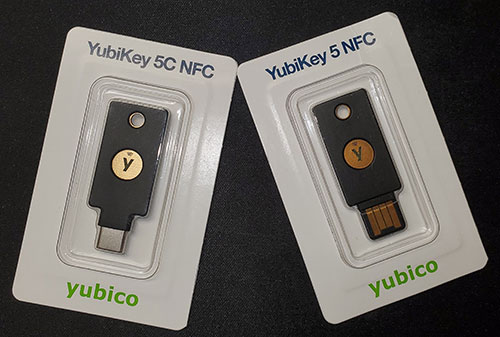
YubiKeys (by Yubico) are available to purchase at the MCC bookstore or online retailers. They do not require a data plan or network service to work and can work as a primary or a backup device.
Click Here to View YubiKey Purchase Locations and Options
MCC Bookstore
Yubikeys are sold in the MCC bookstore.
Amazon
-
Yubico USB A - $25.99 + tax/each - works with laptop or PC (personal computer)
-
Amazon Yubico USB A: https://a.co/d/cytAqGC
-
- Yubico USB C - $29.99 + tax/each - works with laptop or PC, iPhone 15 and newer, iPads running iPadOS 13, and most Androids that support USB C.
- Amazon Yubico USB C: https://a.co/d/cOi1x1j
Employee Department Purchase
Should your department or division use department funds to purchase a YubiKey on your behalf, you must return the token if:
-
Employment at MCC is terminated
-
You transfer to a different department/division within MCC
Please have your YubiKey ready. Failing to insert the key into your device when prompted will cause the process to fail and you will have to start over.
- Click Add a device
- Click Security key
- Click Continue
- On the "Choose Where to Save this Passkey" window, click Security Key
- Click Next
- Click OK
- Click OK
- Insert Key with gold side up
- Touch the gold plate when prompted
- Click OK
- Click Continue
Device Verification using PIN or Fingerprint- Device Specific
Device Verification only works on the device where it was set up. For example, if you set it up on your laptop, it may not work on another computer, phone, or tablet. Because of this, MCC recommends having Duo Mobile or Text Message Passcode as your primary or backup sign-in option.
- Click Add a device.
- Click Device verification.
- Click Continue.
- Complete the requested steps.
Passkey
Passkey Verification may only work on the device where it was set up and is not supported on all devices. For example, if you set it up on your laptop, it may not work on another computer, phone, or tablet. Because of this, MCC recommends having Duo Mobile or Text Message Passcode as your primary or backup sign-in option.
- Click Add a device
- Click Security key
- Click Continue
- On the "Choose Where to Save this Passkey" window, click iPhone, iPad, Android Device
- Click Next
- On your Mobile Device, scan the QR code
- On your Mobile Device, click Use Passkey
- Click Connect Devices
- Use PIN, Password, Face or Fingerprint to approve
- Click OK
- Click Continue
Accommodations Hardware Token
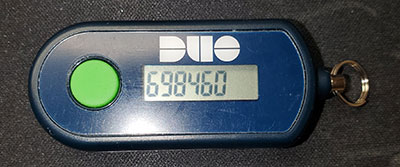
For individuals with ADA (Americans with Disability Act) accommodations, student A, or financial hardships, a hardware token (using a one-time passcode) may be provided at no cost. A hardware token is a small device that generates a one-time passcode used with MFA to log in to a system.
Employees
Contact Human Resource (HR) office at hrstaff@mclennan.edu or (254) 299-8611.
Students
Contact the Accommodations (Disability Services) office at disabilities@mclennan.edu or (254) 299-8122.
Click Here to View Instructions to Remove Devices or Numbers
- Log into the Duo Portal.
- Click Edit next to the device or number you want to remove.
- Click Delete.