
Duo "Login expired" Error
Overview
This article covers how to resolve the Duo “Login expired” error that can occur after completing authentication with Duo.
Getting Started
The Duo “Login expired” error shown below is often caused by the date and time on the device used to access the website or application being out of sync with the current date and time. Although iPads are the devices most frequently affected by this issue, it can occur on any device.
To help keep your account secure, Duo verifies that authentication requests occur at the correct time. If your device's date or time is inaccurate, even slightly, Duo may reject the request and prevent you from signing in. Setting your device to automatically synchronize its date and time can help avoid this issue. If you have received this error, follow the appropriate steps below for your device.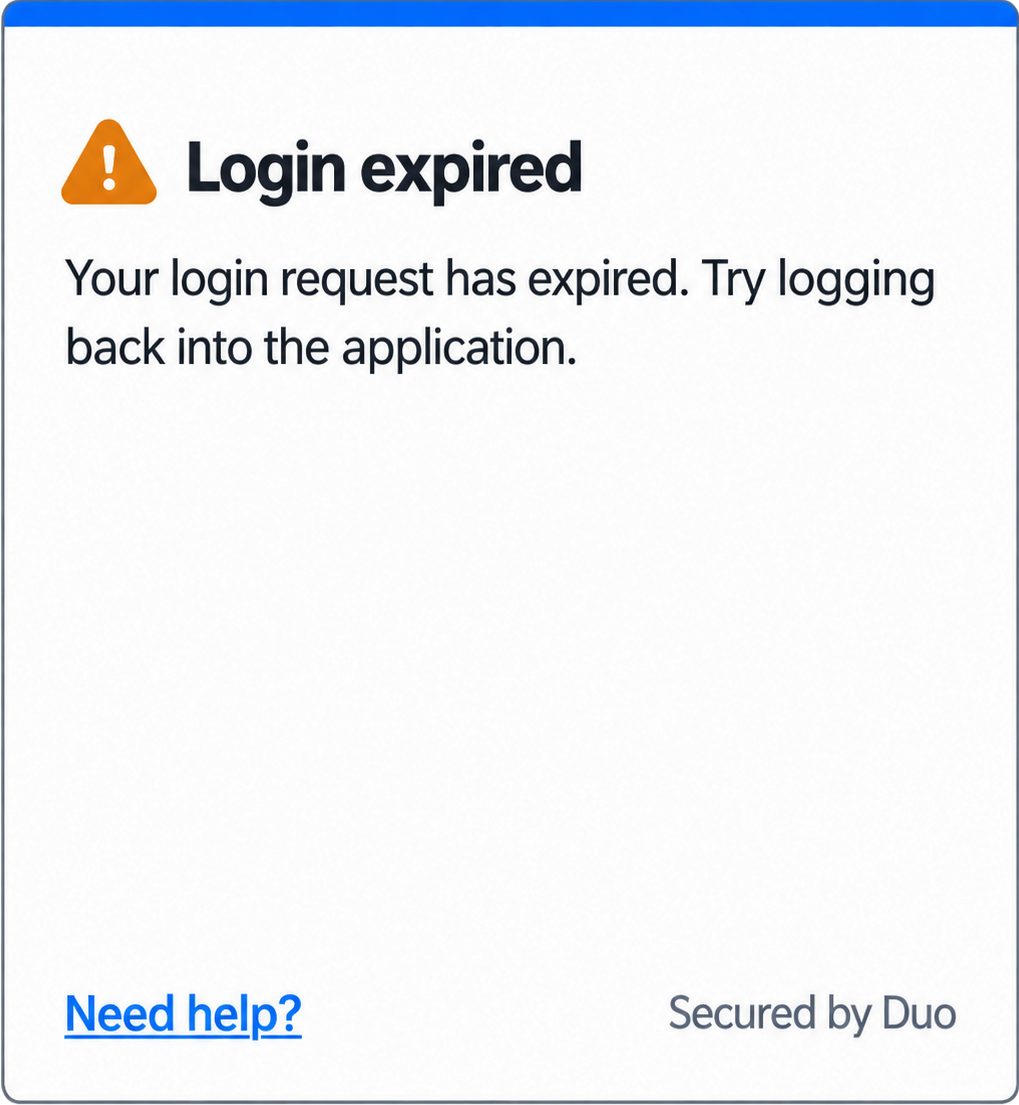
Updating Date and Time Settings by Device Type
On the device you are using to sign in, select your device type below to view instructions for automatically updating the date, time, and time zone:
Settings to Verify on an iPad or iPhone
Note: Settings locations may vary depending on your iOS version. If you cannot find a setting, use the search feature within the Settings app to locate it.
Enable Automatic Date, Time, and Time Zone
- Open the “Settings” app.
- Tap “General”.
- Tap ‘Date & Time”.
- Turn on “Set Time Automatically”.
Note: If the setting is already enabled, turn it off, wait a few seconds, and then re-enable it. - Turn on “Set Time Zone Automatically”.
Enable Location Services (If Automatic Time Zone is Unavailable)
- Open the “Settings” app.
- Tap “Privacy & Security”.
- Tap “Location Services”.
- Turn on “Location Services” if it is not already enabled.
- Scroll to the bottom and tap “System Services”.
- Ensure “Setting Time Zone” is turned on.
- Return to the “Date & Time” settings.
- Verify that “Set Time Automatically” and “Set Time Automatically” are enabled.
Settings to Verify on an Android Device
Note: Settings locations may vary depending on your Android version and device manufacturer. If you cannot find a setting, use the search feature within the Settings app to locate it.
Enable Automatic Date, Time, and Time Zone
- Open the “Settings” app.
- Tap “System” (on some devices, tap “General Management”).
- Tap “Date & time”.
- Turn on “Set time automatically” or “Automatic date and time”.
- Turn on “Set time zone automatically” or “Automatic time zone”.
Enable Location Services (If Automatic Time Zone is Unavailable)
- Open the “Settings” app.
- Tap “Location” and turn on location access if it is disabled.
- Return to the “Date & time” settings.
- Verify that “Set time zone automatically” or “Automatic time zone” is enabled.
Settings to Verify on a Windows 11 PC
Enable Automatic Date and Time
- Select the Start button and then open “Settings”.
- Select “Time & language” on the left menu.
- Select “Date & time”.
- Turn on “Set time automatically”.
Note: If the setting is already enabled, turn it off, wait a few seconds, and then re-enable it. - Under Additional settings click “Sync now”.
Enable Automatic Time Zone
- Select the Start button and then open “Settings”.
- Select “Time & language” on the left menu.
- Select “Date & time”.
- Turn on “Set time zone automatically”.
Note: If "Set time zone automatically" is unavailable or cannot be enabled, verify that Location Services are turned on using the steps in the next section.
Enable Location Services (If Automatic Time Zone is Unavailable)
- Select the Start button and then open “Settings”.
- Select “Privacy & security” on the left menu.
- Under “App permissions”, select “Location”.
- Turn on “Location services”.
- Return to “Date & time” under “Time and language” and verify that “Set time zone automatically” is enabled.
Settings to Verify on a Mac
Enable Automatic Date, Time, and Time Zone
- Select the Apple menu button and then open “System Settings”.
- Select “General” from the left menu.
- Select “Date & Time”.
- Turn on “Set time and date automatically”. Confirm that the correct Source time server is displayed, if applicable. The default is Apple (time.apple.com).
- Turn on “Set time zone automatically using your current location”.
Enable Location Services (If Automatic Time Zone is Unavailable)
- Select the Apple menu button and then open “System Settings”.
- Select “Privacy & Security”.
- Select “Location Services”.
- Turn on “Location Services” if it is not already enabled.
- Return to “General” and then “Date & Time”.
- Verify that “Set time zone automatically using your current location” is enabled.
Settings to Verify on a Chromebook
Enable Automatic Date and Time
- Select the time in the lower-right corner of the screen.
- Select the Settings gear icon.
- Select “Advanced” (if shown).
- Select “Date and time”.
- Ensure “Set time automatically” is enabled.
Enable Automatic Time Zone
From the “Date and time” settings window:
- Select “Time zone”.
- Set the time zone option to “Automatically determine time zone”.
- Choose “Use Wi‑Fi or mobile networks” or “Use all location information”, if available.
Enable Location Services (If Automatic Time Zone is Unavailable)
- Select the time in the lower-right corner of the screen.
- Select the Settings gear icon.
- Select “Privacy and security”.
- Select “Site settings”.
- Select “Location”.
- Ensure location access is allowed.
- Return to Settings and then “Date and time”. Verify “Automatically determine time zone” is enabled.
After Updating the Settings on Your Device
Once your device is displaying the correct date and time, complete the following steps:
- Completely exit your web browser or affected application to end the previous login session:
- On an iPhone/iPad - Open the App Switcher by swiping up from the bottom of the screen and pausing in the middle. Close the web browser or affected app by swiping it away, or restart the device.
- On an Android Device - Open your recent apps and swipe away the web browser or affected app to close it, or restart the device.
- On a Windows PC - If you were signing in to a website, save any important tabs and then close the browser by clicking the "X" in the upper-right corner. If the error occurred while signing in to an application, exit the affected application.
- On a Mac - If you were signing in to a website, save any important tabs first. Then, click the browser's name in the menu bar at the top of the screen and select Quit to completely close the browser. If the error occurred while signing in to an application, click the application's name in the menu bar and select Quit to completely close the application.
- On a Chromebook - Save any important tabs you need, then close Chrome by clicking the "X" in the upper-right corner of the browser window.
- Reopen the website or application you are trying to access.
- Retry signing in and complete the Duo authentication process again.
Additional Resources
- If you are unable to update the date and time settings on your device and can sign in successfully from another device, the issue may be related to the device itself. If the device is not college-owned, MCC Tech Support is unable to provide support for hardware or operating system issues. For personal devices, a local repair provider may be able to help diagnose and resolve the underlying issue.
- If your personal computer or tablet cannot be updated with the correct date and time and you are unable to authenticate using Duo as a result, the Academic Support & Tutoring department offers a Windows laptop checkout program for students. Eligible students can check out a laptop for the semester. To learn more, visit https://www.mclennan.edu/academic-support-and-tutoring/tech-loan.html.
- If you have verified that the date and time are correct but are still receiving the Duo error, are unable to update the settings on a college-owned device, or encounter the issue across multiple devices, contact MCC Tech Support for assistance.