
Manage Devices on Your Duo Account
Overview
This article covers adding additional and alternative authentication methods to your account to avoid getting locked out of your account if you lose access to one of your authentication types or devices.
If you do not have access to a backup device and your primary device is lost, damaged, or unavailable, or if you did not update your Duo authentication methods before switching to a new mobile device or changing phone numbers, you will need to contact the Help Desk by phone during business hours to regain access. Assistance is not available when the Help Desk is closed, and you may remain locked out, potentially missing assignments, exams, or important communications.
Getting Started
First log into the dual Self-Service Portal allowing you to manage what devices, numbers, or passkeys are on your account. If you changed phones but use the same number, use the Phone Call or Text Passcode authentication methods to log into your account and update the phone.
You must first access the self-service portal before trying to add any additional authentication methods to your account. Once you are logged in, you may add additional authentication methods in the Authentication Methods section of this article.
Step 1. Access Self-Service Portal
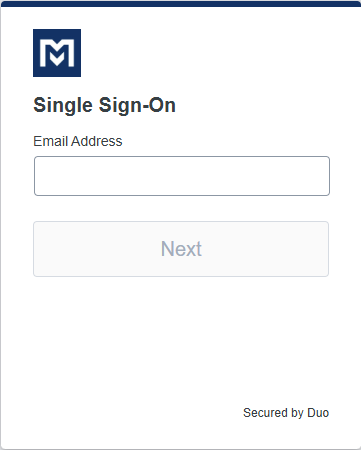
- Go to: https://mclennan.login.duosecurity.com/devices.
- Log in with your MCC credentials (full email & password).
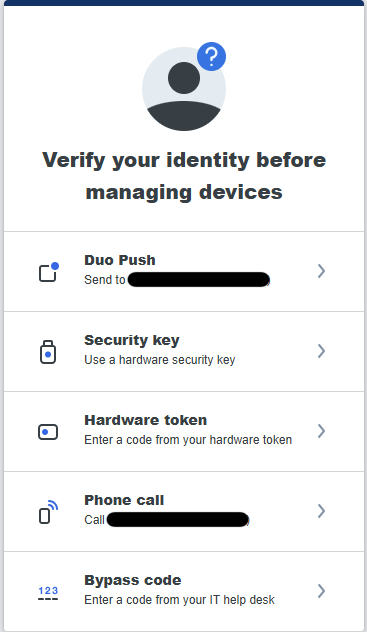
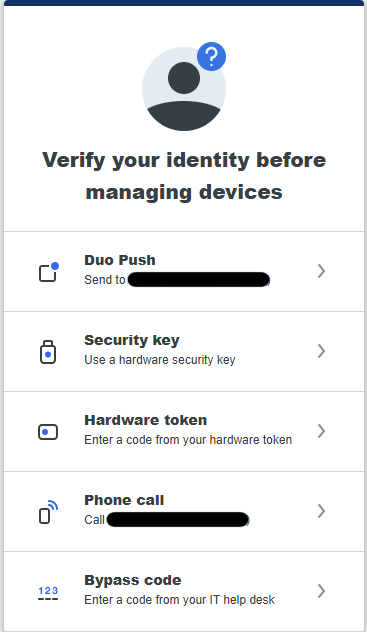
- Verify yourself with your device or method.
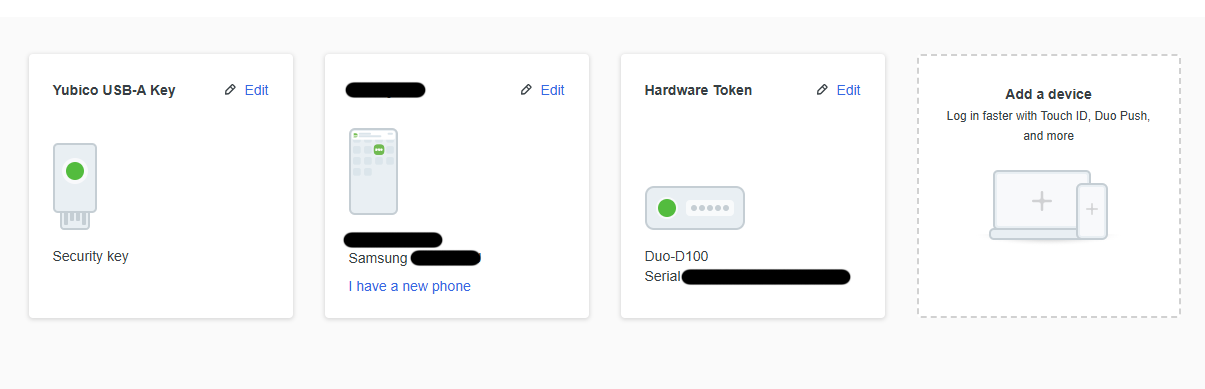
- Once verified, you will be taken to your Duo Self Service portal. Here you will be able to manage your devices & authentication methods.
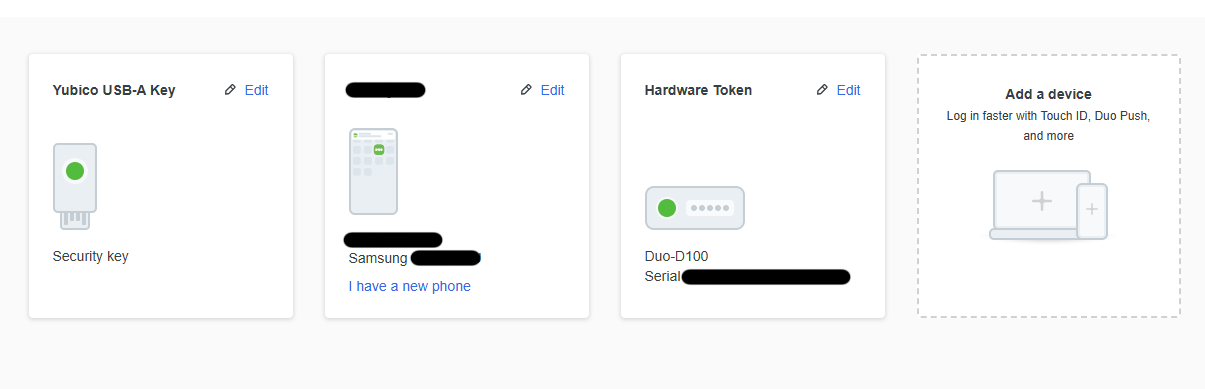
Step 2. Add an Authentication Method
Duo Mobile, text passcode, and phone call authentication configured on the same device is considered a single MFA device and not separate primary and backup methods.
Duo Mobile- Recommended
This is the recommended Duo authentication method
Duo Mobile allows using the Duo app, Text message passcode, and phone call authentication methods. Having the Text message passcode, phone call and Duo app on the same device does not count as having a backup device. For setup instructions, see Setup Duo on your MCC Account.
Text message passcode
YubiKey- No Network or Phone Service Needed
They must be added to your account using the Access Self-Service Portal instructions before being used.
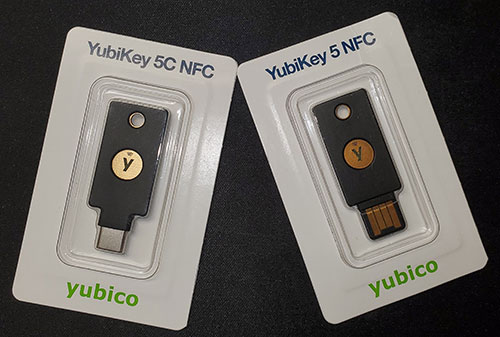
YubiKeys (by Yubico) are available to purchase at the MCC bookstore or online retailers. They do not require a data plan or network service to work and can work as a primary or a backup device.
Purchase Locations
MCC Bookstore
Yubikeys are sold in the MCC bookstore.
Amazon
-
Yubico USB A - $25.99 + tax/each - works with laptop or PC (personal computer)
-
Amazon Yubico USB A: https://a.co/d/cytAqGC
-
- Yubico USB C - $29.99 + tax/each - works with laptop or PC, iPhone 15 and newer, iPads running iPadOS 13, and most Androids that support USB C.
- Amazon Yubico USB C: https://a.co/d/cOi1x1j
Department Purchase
Should your department or division use department funds to purchase a YubiKey on your behalf, you must return the token if:
-
Employment at MCC is terminated
-
You transfer to a different department/division within MCC
YubiKey Instructions
Please have your YubiKey ready. Failing to insert the key into your device when prompted will cause the process to fail and you will have to start over.
- Click Add a device
- Click Security key
- Click Continue
- On the "Choose Where to Save this Passkey" window, click Security Key
- Click Next
- Click OK
- Click OK
- Insert Key with gold side up
- Touch the gold plate when prompted
- Click OK
- Click Continue
Phone Call
Add a phone number to your Duo account without using the App. This is not recommended as the Phone call option is not as robust as the Duo Mobile App. If you choose to authenticate via a phone call but are not getting the call, please check this article for instructions Not Getting Duo Phone Calls?.
- Click Add a Device
- Click Phone Number
- Enter your phone number
- Click Continue
- Confirm the number is correct
- Click Continue
Device Verification or Platform Authentication- Device Specific
This authentication method is device-specific, meaning you can only log in to Brightspace or email on the device that is set up for Device Verification.
It is recommended that you have Duo Mobile App (Recommended) or a phone call on your account regardless if you plan to add a Device Verification and use is as your primary method.
- Click Add a device.
- Click Device verification.
- Click Continue.
- Complete the requested steps.
Please note, not all devices are supported and may not work.
Passkey
- Click Add a device
- Click Security key
- Click Continue
- On the "Choose Where to Save this Passkey" window, click iPhone, iPad, Android Device
- Click Next
- On your Mobile Device, scan the QR code
- On your Mobile Device, click Use Passkey
- Click Connect Devices
- Use PIN, Password, Face or Fingerprint to approve
- Click OK
- Click Continue
Accommodations
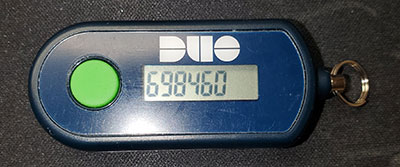
For individuals with ADA (Americans with Disability Act) accommodations, student accommodations, or financial hardships, a hardware token (using a one-time passcode) may be provided at no cost. A hardware token is a small device that generates a one-time passcode used with MFA to log in to a system.
Employees
Contact Human Resource (HR) office at hrstaff@mclennan.edu or (254) 299-8611.
Students
Contact the Accommodations (Disability Services) office at disabilities@mclennan.edu or (254) 299-8122.