Set Time Zone in Outlook, Calendar, and Bookings
Overview
If your Outlook time zone is incorrect, your emails and calendar events may show the wrong times. This guide walks you through how to update your time zone so everything displays correctly.
Getting Started
- Log in to your MCC email here https://mail.mclennan.edu/
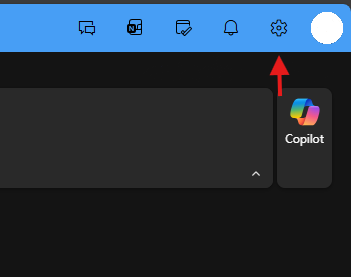
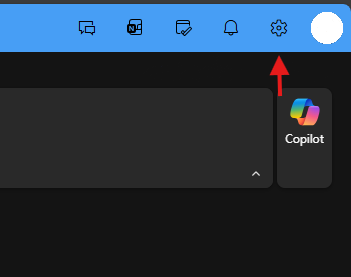
- Click the settings gear in the upper-right
-
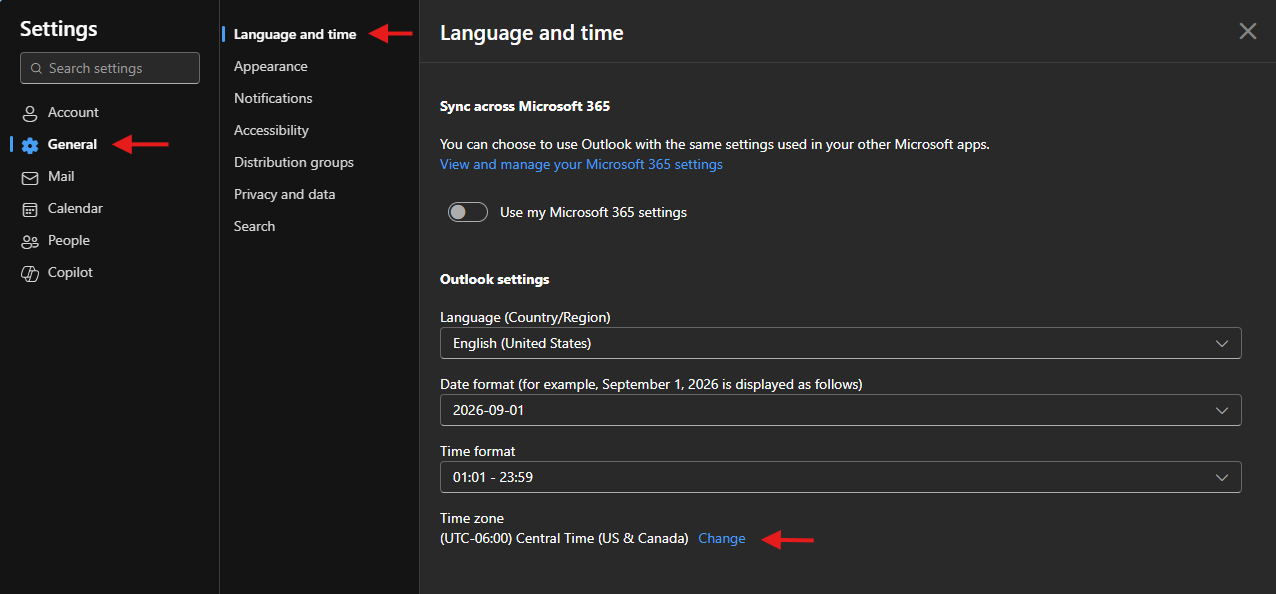
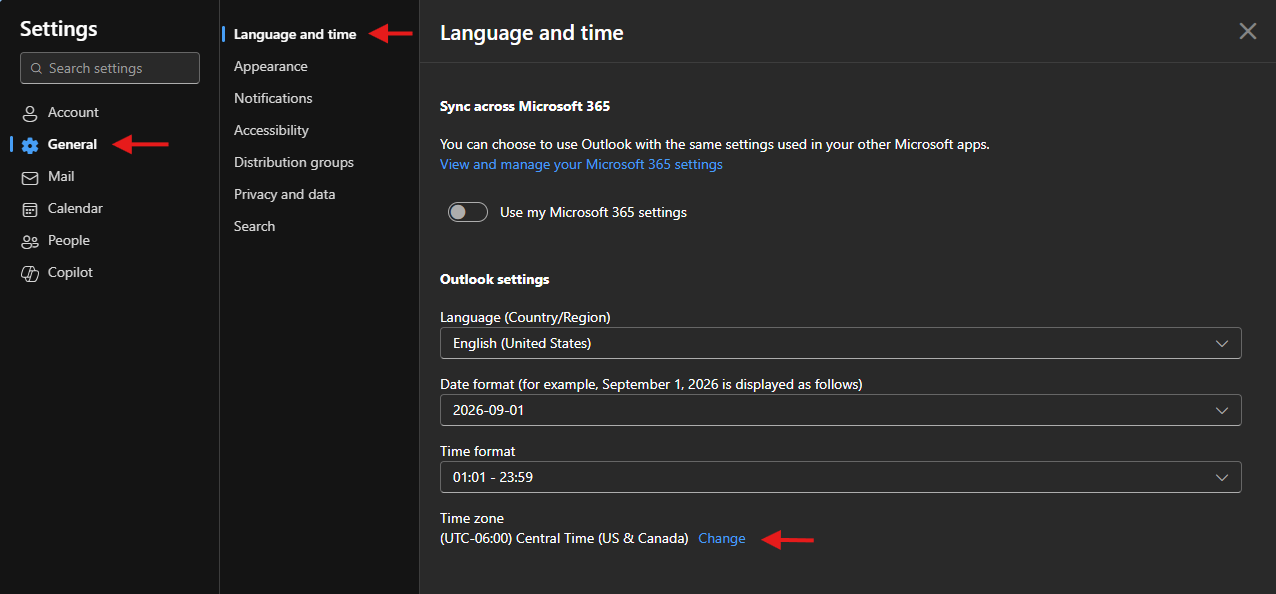
Click General > Language and time > Change
-
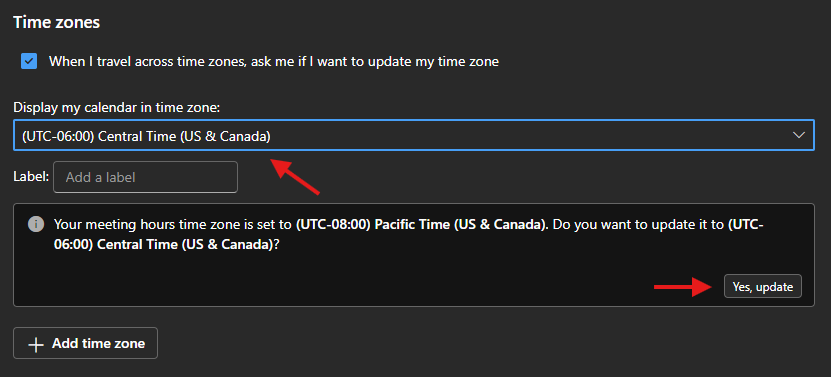
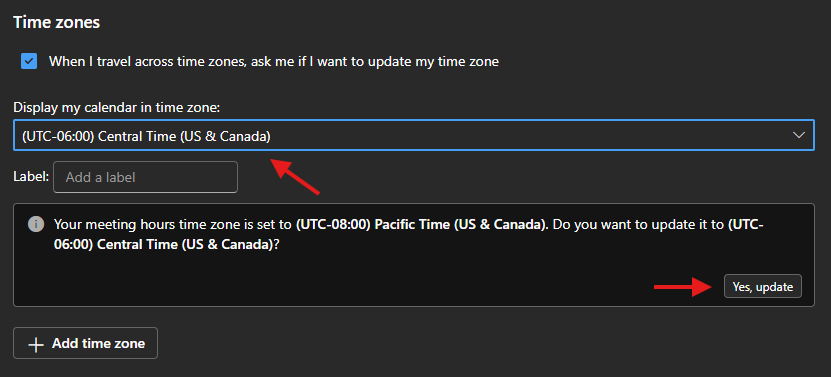
Set your time zone to "Central Time", click "Save", and be sure to click "Yes, update" when it appears. This will ensure that your meeting hours use the same time zone.