
Email Report Button
Overview
In all versions of Microsoft Outlook, there is a Report button that will let users report an email they suspect of being a phishing email or spam. This button will enable the user to send the email to our Cybersecurity team, where it will be further determined if the email is phishing, spam, or not considered dangerous.
Implementing this feature enables users to report possible phishing emails to the Cybersecurity team to investigate without the need to create a Help Desk ticket for it. This cuts down on the amount of time it takes for the user to alert the Cybersecurity department, and subsequent messages can help speed up determination if a phishing or spam campaign is widespread across the institution.
Getting Started
How To Use the Report Button
For Microsoft Outlook (classic), Outlook (new) or web browser version of Outlook (desktop or tablet).
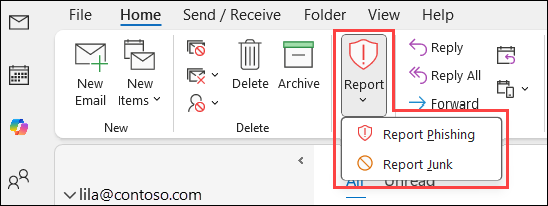
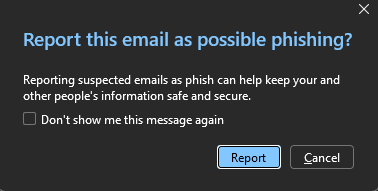
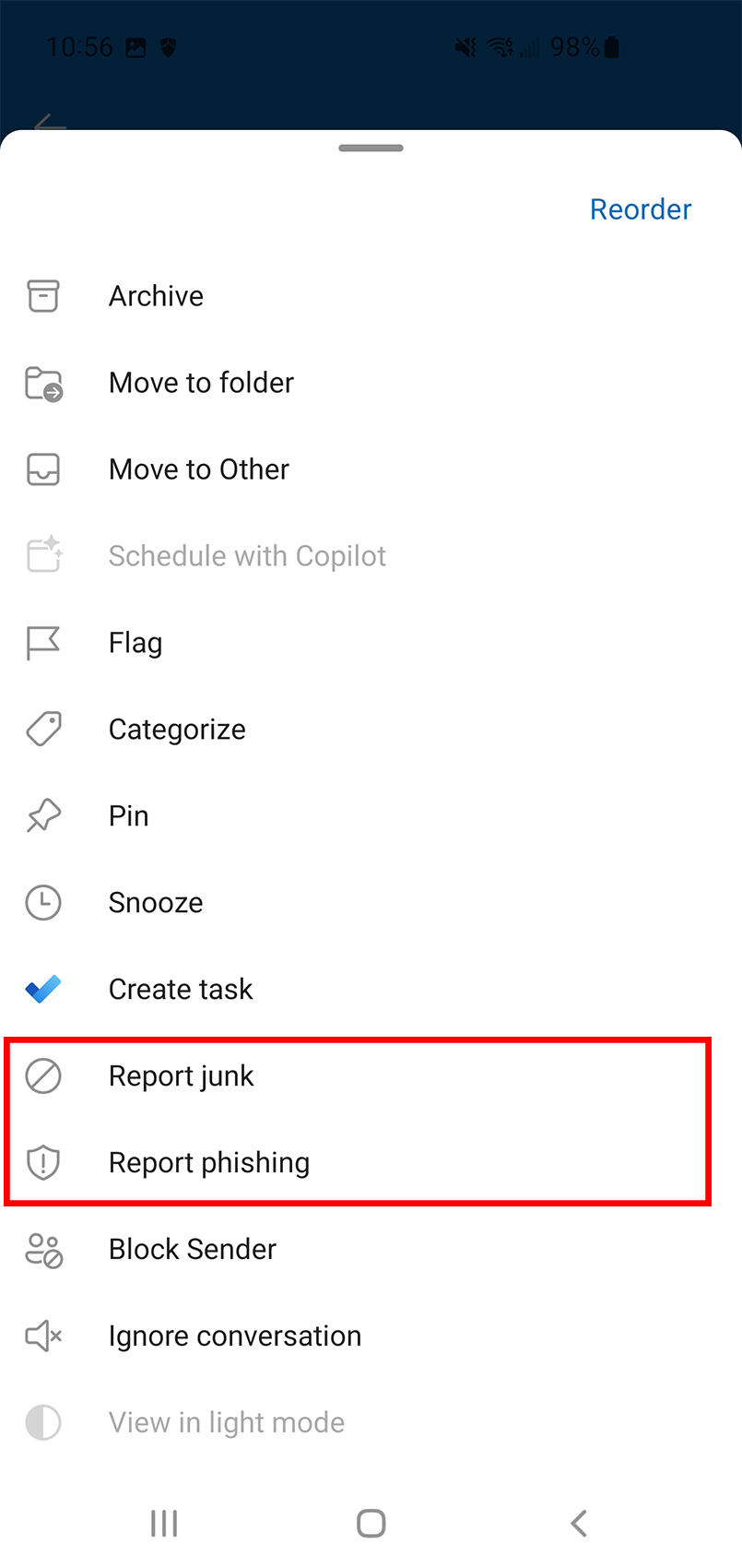
If you press the down-arrow on the button, you will open a small menu with a couple of options: Report Phishing and Report Junk. Use either the message that you have selected, or opened, and once you confirm you want to send the message away as either phishing or junk, press OK to do so. You will get an additional confirmation message that the message has been reported as Phishing or Junk and the email will be deleted from your inbox.
How to Report an Email as Not Junk
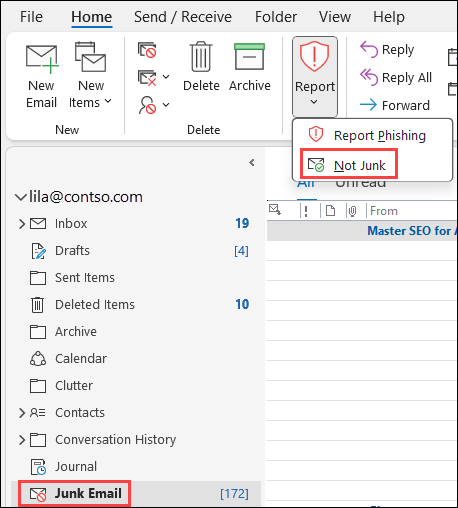
If an email goes straight to your Junk Email folder in Outlook, you can use the Report button to flag the email as Not Junk.
To do this, you will have to go into your junk mail folder and highlight or open a message, and then click on the drop-down menu of the Report button. One of the options will change to “Report as Not Junk.”
For Outlook on mobile devices:
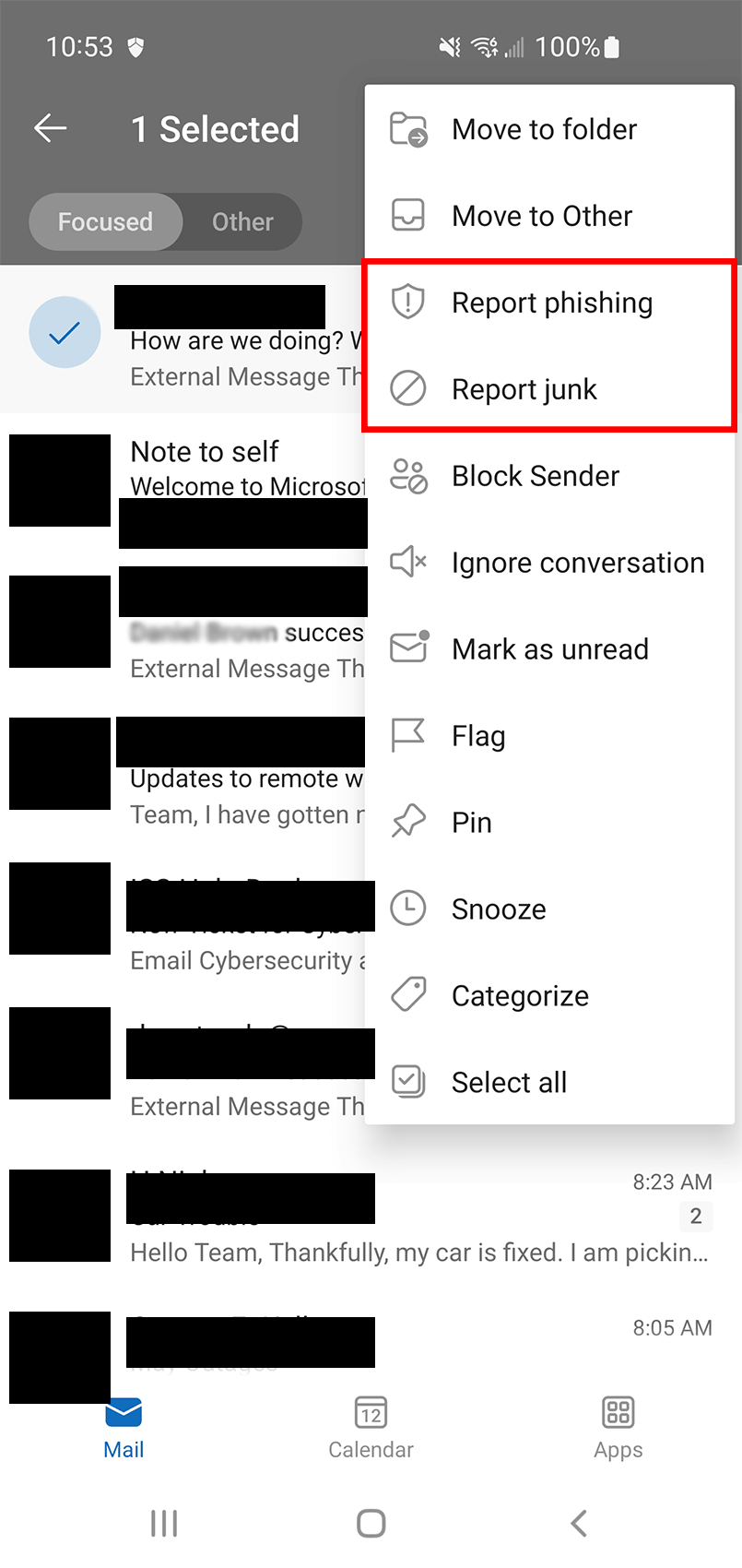
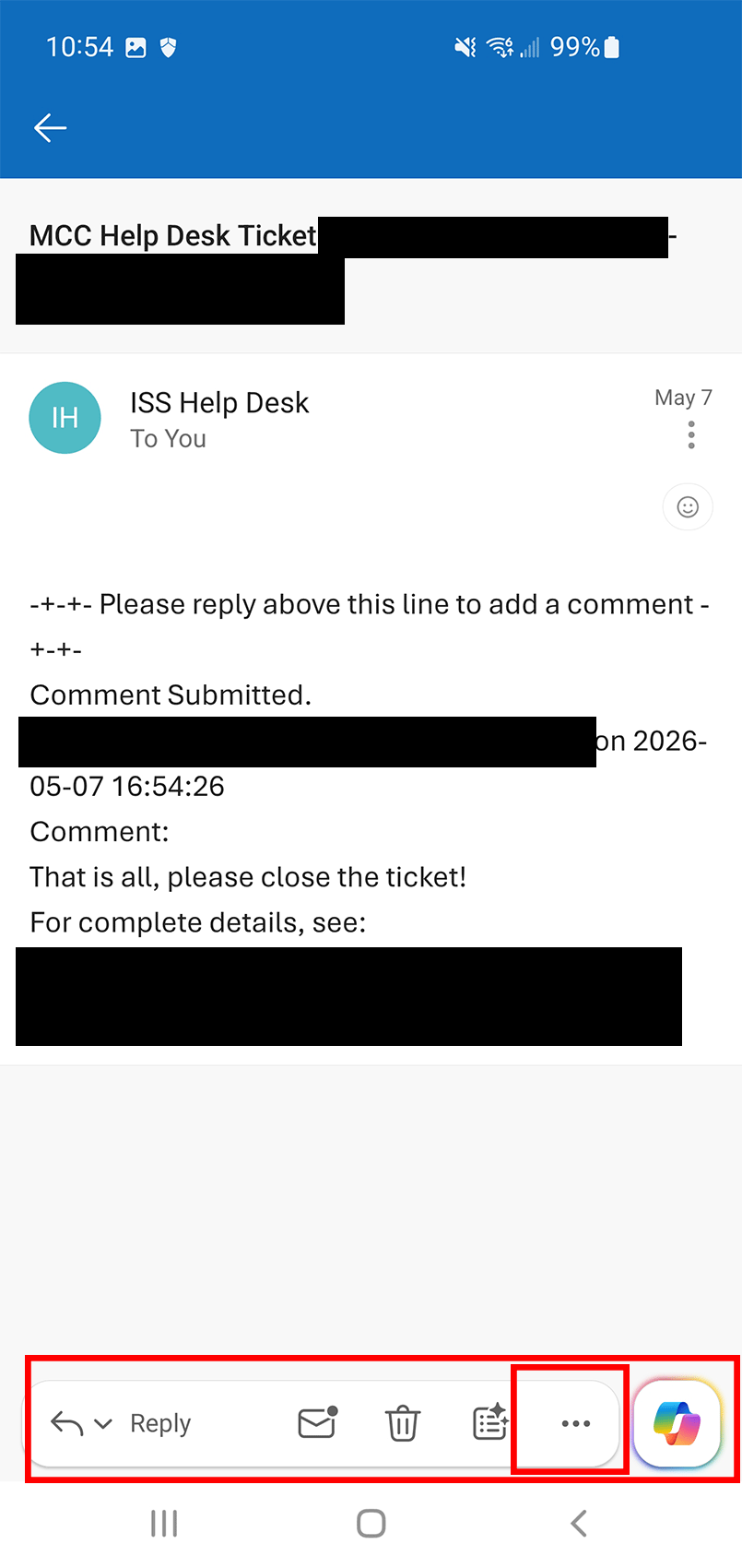
The Report options are located in two places: On your inbox screen when you press the ellipsis (the three dots) menu while you have a message selected, or if you have opened the email, it will be the three dots on the bottom toolbar of the screen.
Additional Details
- Reported emails may be automatically removed from your inbox and sent to your Junk or Deleted folder.
- The Report button may appear differently depending on your outlook version and device.