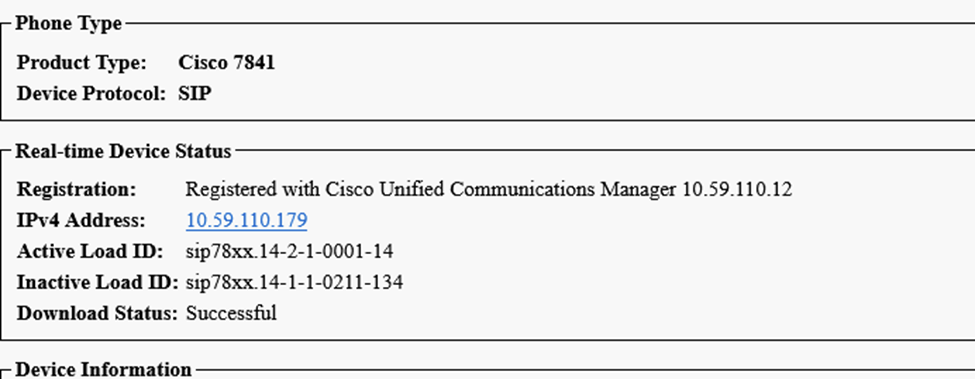
Cisco Phone Firmware Update
Verify Phone Firmware
Log into the CUCM Administrator
Device> Device Settings> Device Defaults
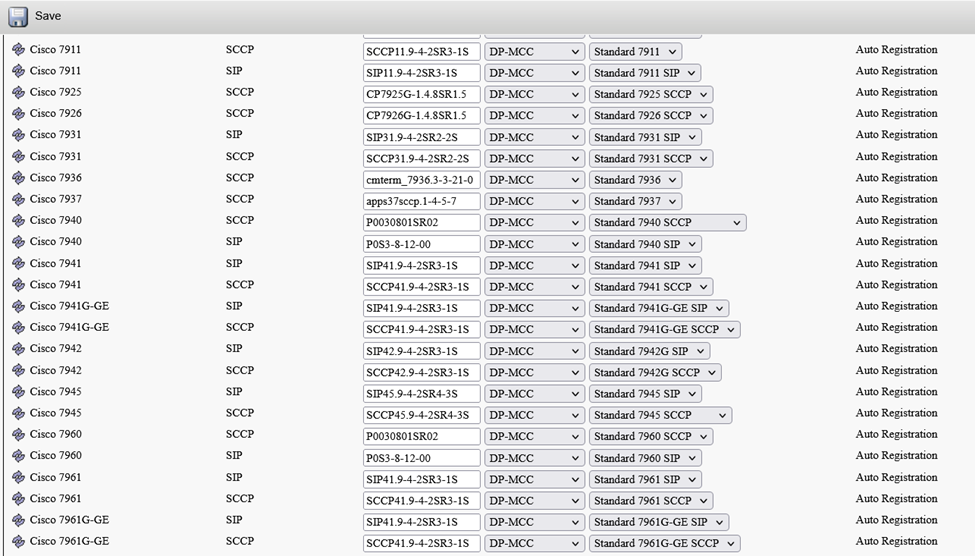
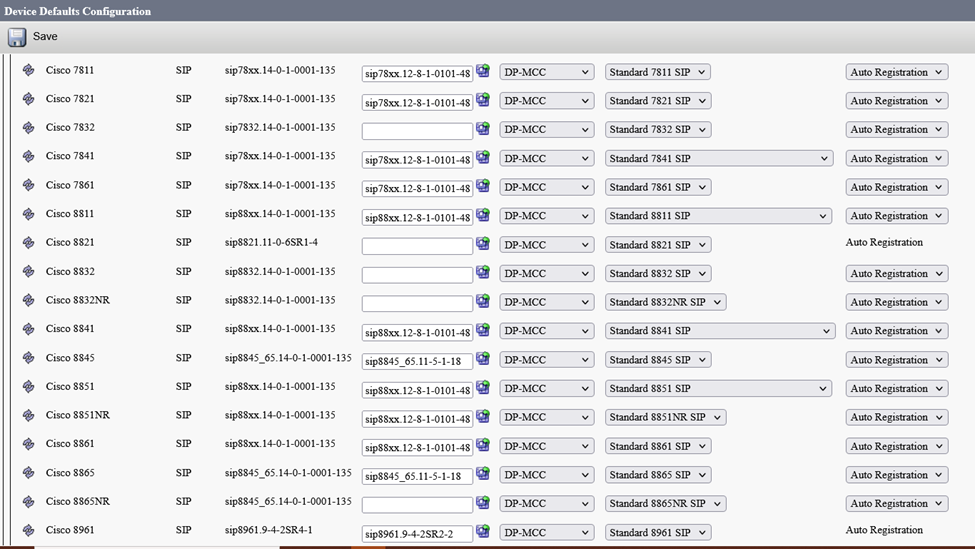
Download New Image for Cisco
Go to the Cisco web site and log in.
https://software.cisco.com/download/navigator.html?mdfid=286037605&flowid=46217
Download the .cop.sha512 version
Note MD5 and SHA512 checksum
Store down loaded firmware in C:\Users\lbrooks\Cisco Firmware
Copy to C:\SFTP_Root to be uploaded
Start SolarWinds SFT/SCP Server
C:\Program Files (x86)\SolarWinds\SftpServer\ScpServerTray.exe
Run ScpServerTray.exe as Administrator
Start Service: bottom left corner, select start.
Turn off Windows Firewall
Install Image on CUCM Server
Log into OS Administration 
Software Upgrades> Install/Upgrade
Local SFTP
Source Remote Filesystem
Directory / (Root Directory of SFTP Server, D:\lbrooks\SFTP_Root)
Server 10.50.110.219 (IP Address of computer with SolorWinds SFTP running as server) 06832-lbrooks
User Name lbrooks (login for SFTP)
Password (Password for user on SFTP)
Transfer Protocol SFTP
Remote SFTP
Source Remote Filesystem
Directory / (Root Directory of SFTP Server, D:\SFTP_Root)
Server 10.50.70.144 (IP Address of computer with SolorWinds SFTP running as server) mcc-utility-01.mclennan.edu
User Name admin.lawrence (login for SFTP)
Password admin.lawrence password (Password for user on SFTP)
Transfer Protocol SFTP
Uncheck the continue with upgrade after download box
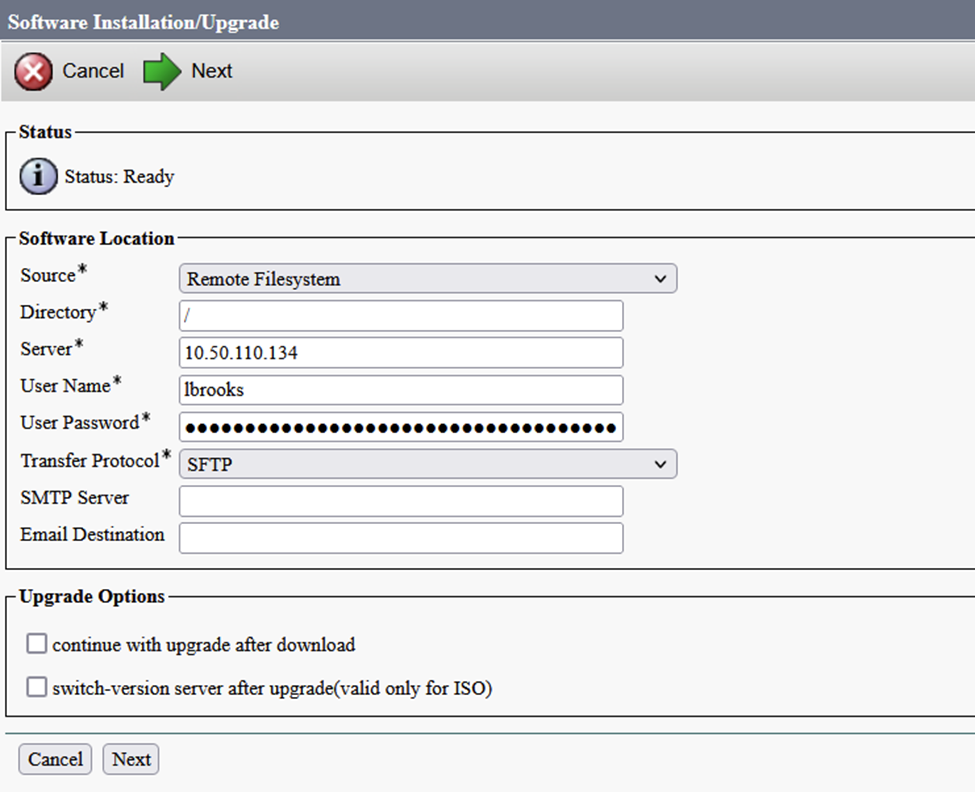
Click Next
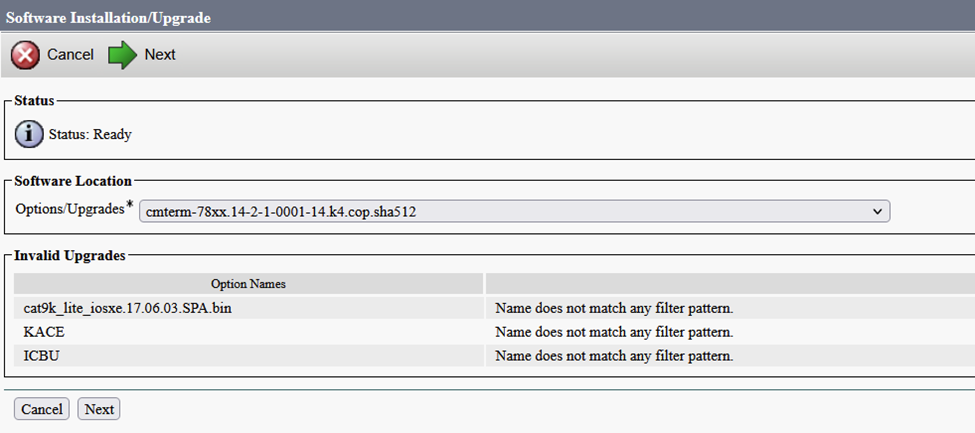
Select the firmware to be uploaded, click Next.
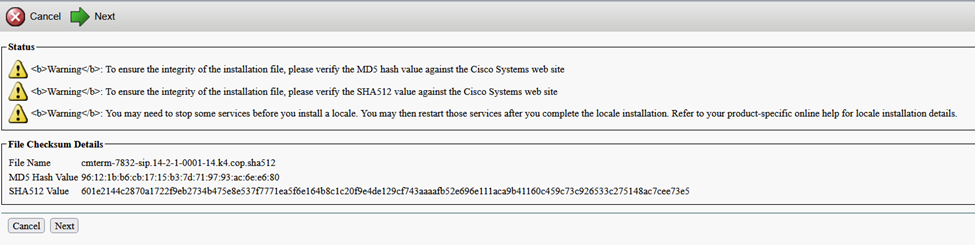
Verify MD5 and SHA512 checksum
Wait for complete status.
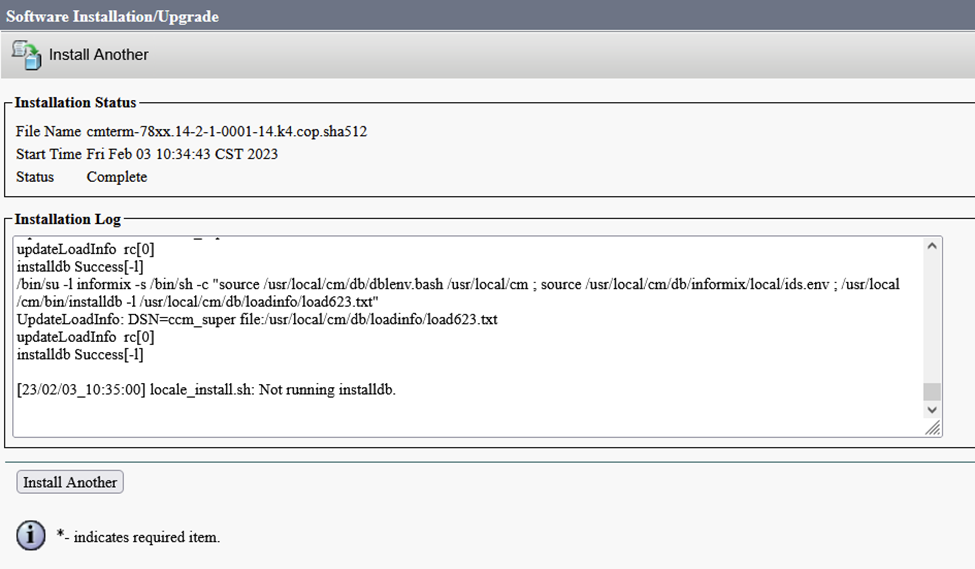
Repeat as needed
Restart Cisco TFTP Services
Log into the Cisco Serviceability 
Tools> Control Center – Feature Services
Select Publisher IP (10.59.110.11—CUCM Voice/Video) (mcc-cucm1.mclennan.edu—CUCM Voice/Video)
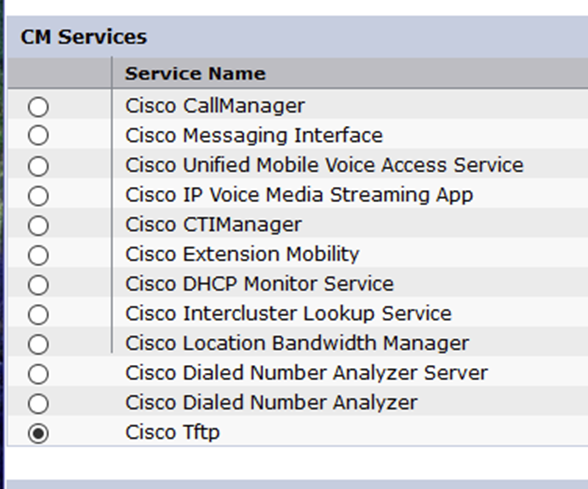
Scroll down to CM Services and select Cisco TFTP
Restart, wait for the screen to refresh.
Repeat on the subscriber (10.59.110.12)(mcc-cucm2.mclennan.edu)
Verify phone firmware
Log into the CUCM Administrator
Device> Device Settings> Device Defaults
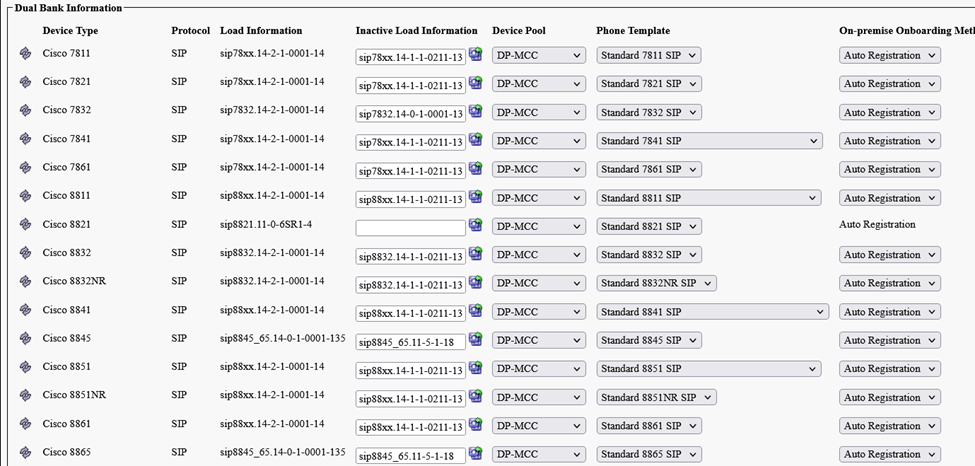
Load Information should reflect the firmware just uploaded. Inactive Load Information should be the old Load Information.
Turn fire walls back on. Close SFTP Server.
Reset Phones
After hours reset the phones.
Device>Phone
Select Device Type in the first drop down, select contains in the second drop down, enter phone model in the search box, click Find.
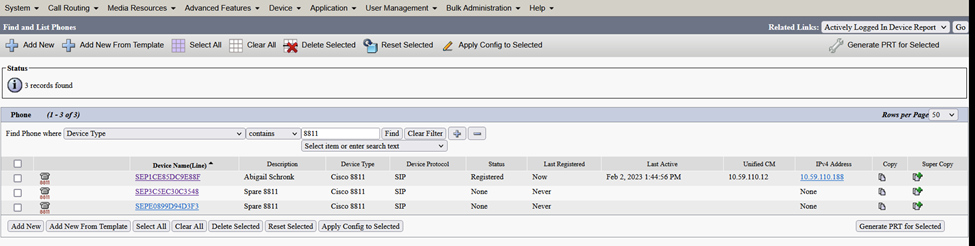
Check the top select all box and click Reset Selected
Click reset in the pop-up window. Wait for the phone to re-register and go to the next page of phone. Click Find to refresh the page. Do not do more than 100 at a time. Phones can take up to 10 minutes to reset, down load the firmware, install the firmware and restart.
New firmware will show up under Requested Load ID after the phone restarts the first time.
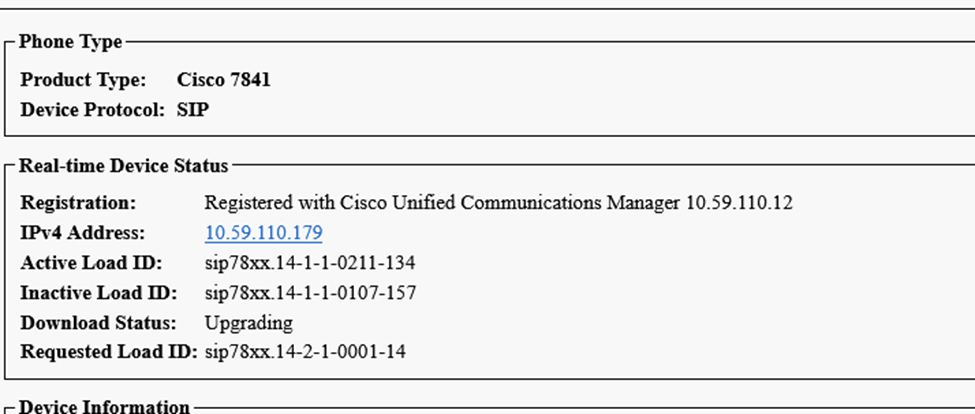
After the phone installs the new firmware, it should show up as the active load and the old active load will move to the Inactive Load position replacing the old inactive load and the requested Load disappears.