
VPN
Overview
These instructions are to connect your work computer or a personal device to the VPN. Certain applications/services require connecting to the VPN first when working remotely such as Colleague, network drives, SharePoint, and Jabber (for soft phone functionality).
Getting Started
MCC-Issued Device
- Open GlobalProtect icon on your work issued laptop.
- If you don't see the grey globe in your Notification Area or under 'Show hidden icons' (lower, right part of your computer), search for GlobalProtect on your computer to open the software.
- If you don't see the grey globe in your Notification Area or under 'Show hidden icons' (lower, right part of your computer), search for GlobalProtect on your computer to open the software.
-
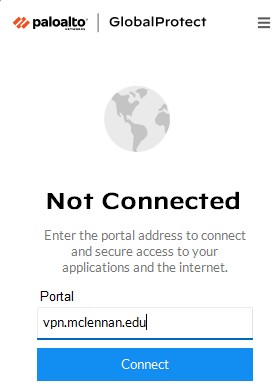
In the address field, type: vpn.mclennan.edu & select Connect
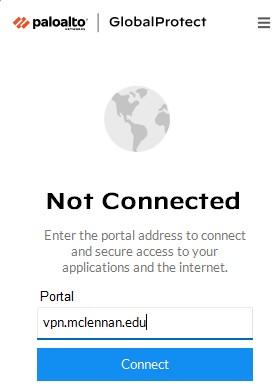
- Log in with your MCC credentials.
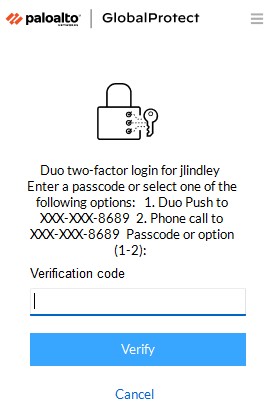
- Choose one (1) of the following options to MFA (Multifactor Authentication):
- Enter your Token passcode. This is the number on your Duo App (the number will change every 30 seconds) or the number on your Hardware Token.
- Get a Duo Push to your mobile device. Enter 1 and select Verify. Click approve on your Duo App.
- Get a Duo Phone Call. Enter 2 and select Verify. Answer the phone call and following the prompts on the call.
Note: If you do not use the Duo App, you will be prompted to enter your Hardware Token Passcode or select 1 to get a Duo Phone Call.
Install VPN for a Personal Device
- Click this URL to access the VPN download page: https://vpn.mclennan.edu/
-
Log in with your MCC username (e.g. jdoe) & password
-
Select the download option to meet the requirements for your computer (most users should select Window 64-bit)
-
Download and run the program to install VPN software
-
Select Next in the Setup Wizard window to begin setup
-
Select Next in the Select Installation Folder window
-
Select Next in the Confirm Installation window
-
Select Close in the Installation Complete window
-
-
GlobalProtect icon (picture of Globe) will display in the taskbar
-
If you don't see the grey globe in your Notification Area or under 'Show hidden icons' (lower, right part of your computer), search for GlobalProtect on your computer to open the software.
-
- Follow the instructions for MCC-Issued Device to open and connect to the VPN.
- Please Note: Network drives are not accessible from a personal-owned computer. We recommend using SharePoint or OneDrive Online instead to access work files remotely on a personal computer.
Mobile Devices
The GlobalProtect mobile app by Palo Alto Networks is supported for Android and iOS (iPad/iPhone) devices. Download the app from your device's app store and connect to the portal address vpn.mclennan.edu with your MCC username (e.g. jdoe) and current MCC password.
Connection Error
Check the VPN Connection Failed article when getting a Connection Failed error message when trying to connect to the VPN.
Resources
Request VPN Access- https://www.mclennan.edu/tech-support/tech-support-form.html