
Zoom Support Resources
Overview
This page includes links and resources for troubleshooting issues with Zoom.
Getting Started
Contacting Zoom Technical Support
- Go to: https://support.zoom.com/hc/en/contact?id=contact_us
- Click "Sign In" at the top right.
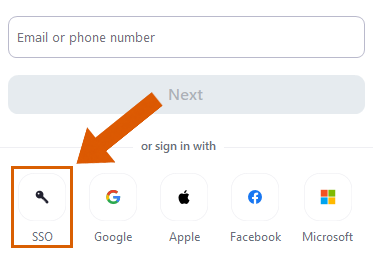
- On the sign in screen, click the "SSO" button.
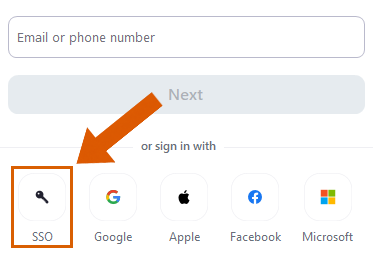
- Type "mclennan" in the Company Domain field and select "Continue".
- Log in with your MCC username and password.
Note: For issues signing in to your McLennan Community College Zoom account, please contact MCC Tech Support for assistance. - Select the button for your desired contact method. Both chat or phone call are available.
Note: Zoom chat support may also be contacted through the Zoom Workplace app by clicking your profile icon at the top, and under the Help menu select "Zoom Support". The system will begin with a virtual agent but will transfer you to a support representative if it is unable to help.
Resources
- Joining a Zoom Meeting- https://support.zoom.us/hc/en-us/articles/201362193-Joining-a-Zoom-meeting
- Using Your Personal Meeting ID - https://support.zoom.com/hc/en/article?id=zm_kb&sysparm_article=KB0066271
- Managing Manual Captions- https://support.zoom.us/hc/en-us/articles/207279736-Closed-captioning-and-live-transcription
- Scheduling Meetings-https://support.zoom.us/hc/en-us/articles/201362413-Scheduling-meetings
- Video Quality- https://support.zoom.us/hc/en-us/articles/115002595343
- Virtual Background- https://support.zoom.us/hc/en-us/articles/210707503-Changing-your-Virtual-Background-image
- Zoom Support (Search Topics)- https://support.zoom.us/hc/en-us