
Zoom SSO Sign-In Instructions
Overview
These instructions provide the steps to login to your McLennan Community College Zoom account from a web browser, on a computer, or on a mobile device.
Getting Started
Website
- Click the 'Login' button at the top right.
-
Log in with your MCC username and password.
Desktop App
-
Open the 'Zoom Workplace' app on your computer.Note: The latest version may be downloaded using the 'Download' link located on the MCC Zoom website https://mclennan.zoom.us/.
-
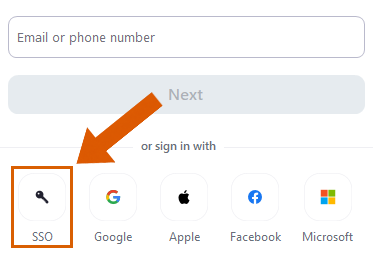
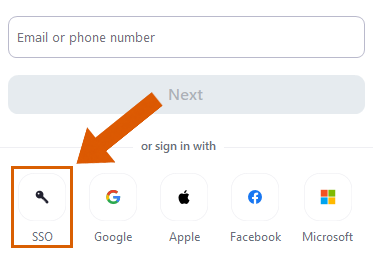
On the sign in screen, click the 'SSO' button.
-
Type 'mclennan' in the 'Company Domain' field and select 'Continue'.
-
Log in with your MCC username and password.
Mobile App
-
Open the 'Zoom Workplace' mobile app, available for install in the Android or iOS app store.
- Select 'Sign in'.
-
Select 'Continue with SSO'.
-
Type 'mclennan' in the 'Company Domain' field and select 'Continue'.
-
Log in with your MCC username and password.