
Access Documents Online (SharePoint 365)
Overview
SharePoint 365 allows students, faculty, and staff to store, organize, share, and work on documents together online. You can quickly access files, collaborate with others in real time, and manage shared documents from any device with your McLennan Community College (MCC) account.
Getting Started
Follow the steps below to sign in to SharePoint 365 and begin accessing and collaborating on files.
Access SharePoint Online
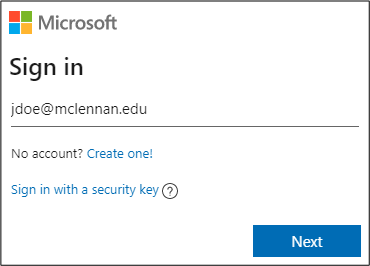
Navigate to the SharePoint Home Page
Manage Recommended Documents
Remove items from the Recommended list without deleting the actual document.
- Hover your mouse over the document you want to remove.
- Right-click the document.
- Select “Remove from list.”
- The file will no longer appear in Recommended items, but it will not be deleted.
Additional Details
- SharePoint allows multiple users to work on the same document at the same time.
- Files can be synced to your computer through OneDrive for easier offline access.
- You can securely share documents with other MCC users directly from SharePoint.