
Accessing Microsoft Office 365 on a Chromebook
Overview
This article outlines how to access the Microsoft Office 365 apps, such as Word, Excel, PowerPoint, and Outlook, on a Chromebook. The desktop versions of these applications are not available for ChromeOS devices.
Getting Started
As a workaround for the installed desktop applications, you may use the online versions of the Microsoft Office 365 applications on a Chromebook by signing in to Microsoft Office 365 Online using the Google Chrome web browser. Although a few advanced features are only available in the desktop versions, the online apps offer a familiar interface and similar functionality.
Signing in to Microsoft Office 365 Online
Follow the steps below to sign in to the online version using your McLennan Community College Microsoft 365 account:
- Go to www.office.com.
- Sign in to www.office.com on the device with your MCC email address (e.g. ab0123456@students.mclennan.edu) and current MCC password.
- Note: If your MCC password is not allowing you to sign in, close the login screen, reset your MCC password to force a sync to the Microsoft 365 account, wait 5 minutes, and then retry logging in.
Accessing the Microsoft Office 365 Apps
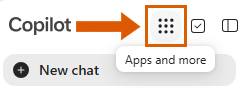
Once you have signed in, the Copilot home page will be displayed. Copilot is Microsoft's AI assistant and is included as part of Microsoft 365 services. To access the other Microsoft 365 apps:
- Click the Apps and more icon at the top left and select More apps from the menu that appears.
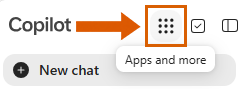
- Select the desired application from the Apps section, or click the All apps link to view the full list of available Microsoft 365 applications.
Tip: Click OneDrive from the Apps section to view or download your files created in Excel, PowerPoint, or Word Online. - Need to upload a file from Office 365 Online to Brightspace? Check out our Uploading an Office 365 Document from a Web Browser to Brightspace article.
Utilizing OneDrive for More Convenient Uploading to Brightspace
For a more convenient option uploading assignments to Brightspace, some Chromebooks support installing the OneDrive app from the Play Store. Since Microsoft 365 files are saved automatically to OneDrive, you can upload assignments directly to Brightspace without downloading the file first. To utilize the OneDrive app:
Prerequisite: Installing and Signing into the OneDrive App
- Open the Google Play Store on your Chromebook.
Note: The Google Play Store may be unavailable on Chromebooks that are managed by a school or organization. If OneDrive is unavailable on your device and you cannot install it, contact your organization's IT department for assistance.
- Search the Play Store for Microsoft OneDrive.
- Select Microsoft OneDrive from the search results and click Install.
- Once the installation is complete, open the OneDrive app.
- Sign in with your MCC email address (e.g. ab0123456@students.mclennan.edu) and current MCC password.
Uploading a OneDrive File to Brightspace
- Open Chrome and sign in to Brightspace.
- Navigate to the assignment you want to submit.
- Scroll to the submission area and click Add a File.
- Select My Computer as the source of the file.
- Click Upload.
- In the file selection window, select OneDrive from the left sidebar. If OneDrive is not displayed, open the OneDrive app and verify that you are signed in to your MCC Microsoft 365 account.
- Browse to the folder containing your assignment file and select the file you would like to upload.
- Click Open and then click Add.
- Confirm the correct file has been selected and when ready, click Submit.
- Click Done to exit the assignment submission page.
For a video tutorial of the assignment submission process and how to confirm a submission, visit Submit and Confirm a Submission of an Assignment.
Windows Computers with Office 365 on Campus
If you need features that are only available in the desktop versions of Microsoft Office, or if you encounter problems using Microsoft 365 Online on your Chromebook, Windows computers with the Microsoft Office 365 desktop applications already installed are available through a couple of options on campus:
- Tech Loan Program – There is a checkout laptop program with Windows laptops available through the Academic Support & Tutoring department. For more information, visit https://www.mclennan.edu/academic-support-and-tutoring/tech-loan.html.
- Library Workstations – There are workstations available for student use in the library that have the Microsoft Office 365 desktop applications already installed. For the library’s current semester’s business hours, visit https://www.mclennan.edu/library/index.html.
Resources
- Computers That Support the Microsoft 365 Desktop Apps - If you are considering a new computer for use with the Microsoft Office 365 desktop applications, please review the Computer System Recommendations article for MCC Tech Support’s current recommendations.
- Microsoft Office 365 Access Information - McLennan Community College provides access to Microsoft Office 365 based on your student status or if you are a full or part-time employee. Your access level will change automatically depending on whether you are currently taking a class, between classes, not registered for a future class, or if you are full or part-time employee. For more information, please review the How to Access Microsoft Office 365 article.
Important: You will lose access to your MCC Google and Microsoft Office 365 accounts after 365 days without enrollment. Be sure to download any important files or emails from your MCC accounts before they reach this threshold! You can find more information about saving your data at Former Student Account Deletion: What to Know and How to Save Your Data.