
How to Access Microsoft Office 365
Overview
McLennan Community College provides access to Microsoft Office 365 based on your student status or if you are a full or part-time employee. Your access level will change automatically depending on whether you are currently taking a class, between classes, not registered for a future class, or if you are full or part-time employee.
Getting Started
Check your Office 365 access level using the "Check Your Access to Office 365 Here" drop-downs. This will show whether you can use Office online through a web browser only, or if you also have access to activate the installed desktop applications. Then, review the appropriate instructions for accessing Office 365, installing the Office 365 desktop apps, or signing in to an installed Office 365 application using your MCC account.
Check Your Access to Office 365 Here
Click Here if You Are You a Student
Check what access you have if you are taking a class, registered for a future class, not registered for an upcoming semester, or if you are a former student.
Current Students (I am currently taking a class.)
If you are currently enrolled and taking classes at MCC, you will have full access to Microsoft Office 365 including both the online versions and the desktop applications.
- Includes Microsoft Word, Excel, PowerPoint, Outlook, and more online.
- Software can be installed on up to 5 personal devices.
- Access is automatically granted once you are attending classes.
Future Students (I am registered for a future class that has not started.)
If you are an incoming student who has registered for classes, but has not yet started those classes, you will only have access to the web-based version of Microsoft Office 365.
- Office Online includes Word, Excel, and PowerPoint in your browser.
- Desktop installations are not available until you are attending classes.
Inactive Students (Your class has ended.)
If you are a student who has taken a class within the last year, you will only have access to the web-based version of Microsoft Office 365.
- Office Online includes Word, Excel, and PowerPoint in your browser.
- Desktop installations are not available until you are attending classes.
Former Students (Have not taken a class within the last 365 days.)
Students who have not attended classes in over one (1) year will no longer have access to Office 365.
- This includes both Office Online and the installed desktop apps.
- Access is automatically removed after 1 year of not taking a class.
- To regain access, you must re-apply to MCC and register for courses.
- Please save any data before access is removed. Former Student Account Deletion: What to Know and How to Save Your Data
Click Here if You Are You a Full-Time or Part-Time Employee
Full Time
If you are a full time employee, you will have full access to Microsoft Office 365 including both the online versions and the desktop applications.
- Includes Microsoft Word, Excel, PowerPoint, Outlook, and more online.
- Software can be installed on up to 4 personal devices and one work laptop.
Part-Time
If you are a part-time employee, you will only have access to the web-based version of Microsoft Office 365.
- Office Online includes Word, Excel, and PowerPoint in your web browser with similar functionality to the installed versions.
- Desktop installations are not available.
- Note: If you prefer the installed version of the Office 365 applications, MCC employees are eligible for a 30% discount on select Microsoft 365 personal subscriptions. Visit the Microsoft Workplace Discount Program for Personal Microsoft 365 Subscriptions article for more information. Log in using your MCC username and password to view the article.
How to Access Microsoft Office 365
Click Here if You Are Using Office 365 Online (Using Office 365 On a Web Browser)
Using Office 365 Online
Office 365 Online lets you access your files and applications like Word, Excel and PowerPoint from any device with the Internet, so you are never stuck at one location. Your work is saved in the cloud, so you do not have to worry about losing anything. It is also easy to collaborate with others in real-time and since everything updates automatically, you always have the latest features and security.
- Go to www.office.com on any device or computer.
- Sign in to www.office.com on the device with your MCC email address (e.g. ab0123456@students.mclennan.edu) and current MCC password.
- Note: If your MCC password is not allowing you to sign in, try resetting your MCC password to force a sync to the account, wait 5 minutes, then try to log in again.
- Note: If your MCC password is not allowing you to sign in, try resetting your MCC password to force a sync to the account, wait 5 minutes, then try to log in again.
- Click the Apps and more icon at the top left and select More apps from the menu that appears.
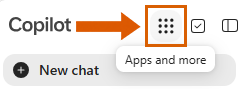
- Select the desired application from the Apps section, or click the All apps link to view the full list of available Microsoft 365 applications.
Tip: Click OneDrive from the Apps section to view your files created in Excel, PowerPoint, or Word Online. - Need to upload a file from Office 365 Online to Brightspace? Check out our Uploading an Office 365 Document from a Web Browser to Brightspace article.
Click Here If You Need to Install the Office 365 Apps on Your Computer
Please note the install option will only be available with the current student license or full-time employee license.
To install the desktop apps, follow the steps below:
- Sign in to www.office.com on the device with your MCC email address (e.g. ab0123456@students.mclennan.edu) and current MCC password.
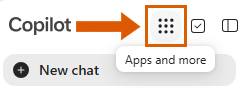
- Click the Apps and more icon at the top left and select More apps from the menu that appears.
- Click the Install apps button at the top right and then select Microsoft 365 apps.
Note: If you are using a Chromebook, please see the Compatibility section below for more information. - Under the "Office apps & devices" section click the Install Office button to begin the download of the installer.
- Once the download is finished, open the installer and follow the on-screen instructions to install the Microsoft 365 applications on your computer.
- Once the install process completes, open Word or another Microsoft Office 365 application.
- On the Microsoft 365 sign-up screen, locate the option to sign in with an existing subscription or account.
- Sign in with your MCC email address (e.g. ab0123456@students.mclennan.edu) and current MCC password.
-
If prompted to select an account type, select Work or school account.
- Select "Yes, all apps" on the "Automatically sign in to all desktop apps and websites on this device?" screen.
- On the "Allow your organization to manage your device?" screen, select "No" on a personal computer or "Yes" on an MCC workstation.
If you selected “Yes” on a personal device, an error message will appear and the activation may not complete successfully. If that happens, exit all Microsoft 365 applications and then try signing in again but choose “No” when asked whether you want to allow your organization to manage your device.
Compatibility
- If you are on a Mac and do not see the Install apps button on the home screen, navigate away from the page and then go back to it. It may take a few minutes and a refresh for the button to appear after initial sign-up.
- There are also Office 365 mobile app versions that you can download from the App Store/Play Store. You will sign into the apps with your Microsoft 365 account.
- Unfortunately, the desktop and mobile apps are not supported on Chromebooks. For Chromebook-specific instructions, visit Accessing Microsoft Office 365 on a Chromebook.
Click Here If Office 365 Desktop Apps Are Already Installed And Need to Use MCC's License
Please note the install option will only be available with the current student license or full-time employee license.
If the desktop apps have been recently installed or you already have the Microsoft Office 365 programs like Word, Excel, or PowerPoint installed on your computer, you can activate them by signing in with your MCC email address and current MCC password.
- Open Word or another Microsoft Office 365 application.
-
On the Microsoft 365 sign-up screen, locate the option to sign in with an existing subscription or account.
- Sign in with your MCC email address (e.g. ab0123456@students.mclennan.edu) and current MCC password.
-
If prompted to select an account type, select Work or school account.
- Select "Yes, all apps" on the "Automatically sign in to all desktop apps and websites on this device?" screen.
- On the "Allow your organization to manage your device?" screen, select "No" on a personal computer or "Yes" on an MCC workstation.
If you selected “Yes” on a personal device, an error message will appear and the activation may not complete successfully. If that happens, exit all Microsoft 365 applications and then try signing in again but choose “No” when asked whether you want to allow your organization to manage your device.
Click Here If Using Office 365 on a Phone or Tablet
- Install the Office 365 applications from your mobile device app store.
- Sign into the application using your MCC email address and password.
Termination of Access
It is not recommended to use your MCC email address for any long-term personal use.
- It is not recommended to use this account for long-term personal use or to link it with third-party services such as social media, medical portals, banking, etc.
- Office 365 access and all associated data will be deleted based on the following:
- For employees, upon the end of your employment.
- For students, after a 12-month period without any active courses.
- Upon leaving MCC, be sure to update any account, associated with or linked to your Office 365 account, to your personal email address. You can find more information about saving your data at Former Student Account Deletion: What to Know and How to Save Your Data.
Help & Learning Resources
Search topics at https://support.microsoft.com/en-us
- Excel- https://support.microsoft.com/en-us/excel
- OneDrive- https://support.microsoft.com/en-us/onedrive
- OneNote- https://support.microsoft.com/en-us/onenote
- PowerPoint- https://support.microsoft.com/en-us/powerpoint
- Teams- https://support.microsoft.com/en-us/teams
- Visio- https://support.microsoft.com/en-us/visio
- Word- https://support.microsoft.com/en-us/word