
Updating a Ticket in KACE
Overview
This article explains how to update your tickets in the KACE ticketing system. Alternatively, you can also add updates by replying to a ticket email without modifying the To or Subject fields.
Getting Started
- Log in to KACE with your MCC username and password.
Please Note: An active MCC login account, provided to current students and employees, is required to access the KACE ticketing system. Without an active account, you can still reply to support request emails, but you will not be able to view or manage requests online.
- On the Home page, locate the "My Tickets" section and open the ticket you would like to update by clicking its ticket number or subject line.

Tip: Don't see your ticket? Select the "View all My Tickets" link to display your full ticket list.
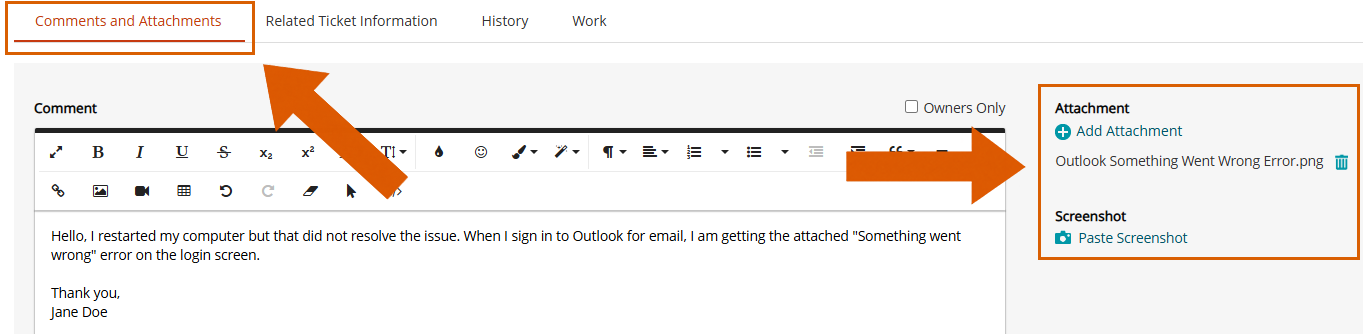
- Scroll down to the "Comments and Attachments" section.
- Add a new comment in the Comment text box. To the right of the Comment text box, you may also attach supporting documents or paste screenshots.
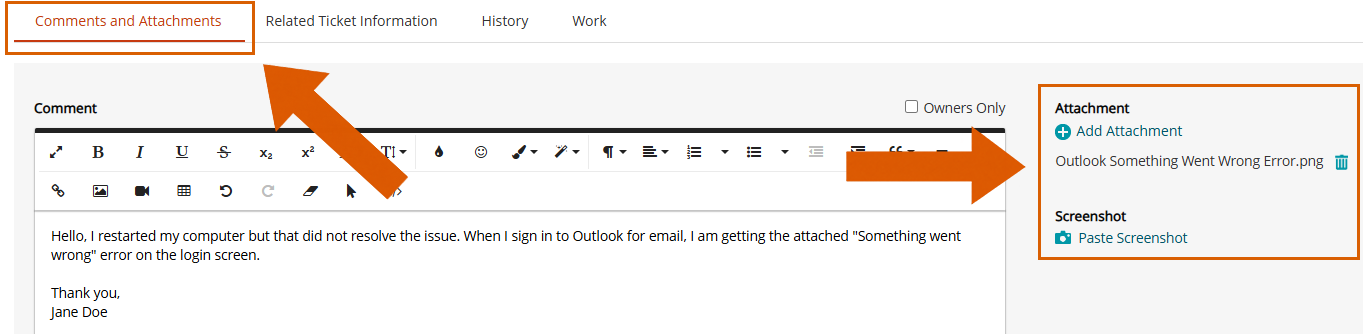
- Once you have finished your comment and attached any supporting documents or screenshots, click "Submit Comment".
- After completing your ticket updates, click "Save" at the bottom of the page to update the ticket and return to the ticket dashboard.
- To return to the KACE Home page, click "Home" in the left navigation menu.

Additional Resources
- Providing Feedback on a Closed Ticket - How to Complete a Feedback Survey in KACE