
How to Complete a Feedback Survey in KACE
Overview
This article outlines the steps for submitting service feedback after a support request has been closed in KACE. The Information Systems & Services department values your feedback and uses it to continually improve the quality of service we provide.
Getting Started
After your ticket has been resolved and closed, you have the opportunity to provide feedback on the service you received.
- Open the feedback email received when the ticket was closed. The subject line will be similar to: Quick feedback for closed ticket [TICK:000000]: Ticket Title.
- To complete the survey, click the link provided under "Submit Your Feedback".
Please Note: The "-+-+- Please reply above this line to add a comment -+-+-" message is automatically added to all KACE ticket notifications and is unrelated to the feedback survey. If you still need help with the issue, simply reply to the email and the ticket will automatically reopen, notifying the support team member who assisted you. To share feedback about your support experience, select the survey link located lower in the email instead of replying.
- If you are not already signed in, log in to KACE with your MCC username and password.
- In the survey section, located at the top of the page, rate your experience from 1 to 5 and, if desired, provide comments about your service experience.
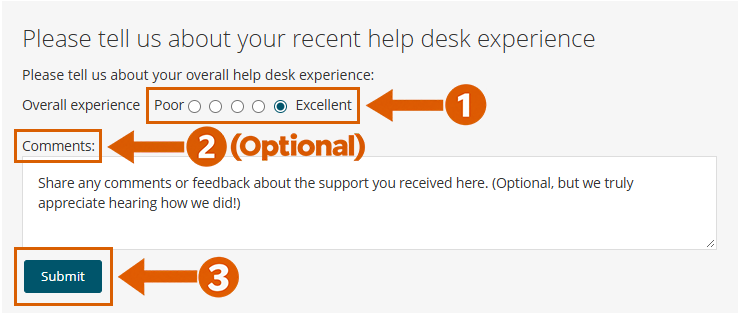
- Select "Submit" to send your survey response, then click "Save" at the bottom of the page to return to the KACE ticket dashboard. Once saved, you may close the KACE browser tab.
Survey submissions are shared with the ISS team to help us improve our services and provide recognition to team members who deliver exceptional support.
Additional Resources
- How to Add a Response to an Open Ticket - Updating a Ticket in KACE